

INTRODUCTION
In Salesforce Service Cloud implementations, admins typically focus on the visible, impressive features: case management flows, automation rules, custom dashboards, and escalation logic. Yet many overlooked two seemingly simple configurations that silently underpin everything else: Business Hours and Holidays. These aren’t flashy features that appear in demos, but they are foundational settings that determine whether your entire service operation works as intended or silently fails. This post explores why these configurations matter, how they impact critical features, and the real-world consequences of getting them wrong.
THE OVERLOOKED FOUNDATION
Why Business Hours and Holidays Get Ignored
Business Hours and Holidays are administrative configurations that many teams approach casually:
Common Misconceptions:
- “It’s Just Scheduling” – Admins assume it’s only for displaying working hours
- “We’ll Configure It Later” – Deferred indefinitely during implementation
- “All Hours Are the Same” – Assumption that the system works the same regardless
- “Holidays Don’t Matter Much” – Seen as minor adjustments for edge cases
- “One Setting for Everyone” – Not realizing multiple business hours can be needed
The Reality:
Business Hours and Holidays are not merely informational—they are active calculation parameters that Salesforce uses to:
- Calculate SLA timers
- Determine escalation triggers
- Measure response and resolution times
- Schedule automated actions
- Generate performance reports
Without proper configuration, these calculations become unreliable, leading to inaccurate SLA tracking and service metrics that don’t reflect reality.
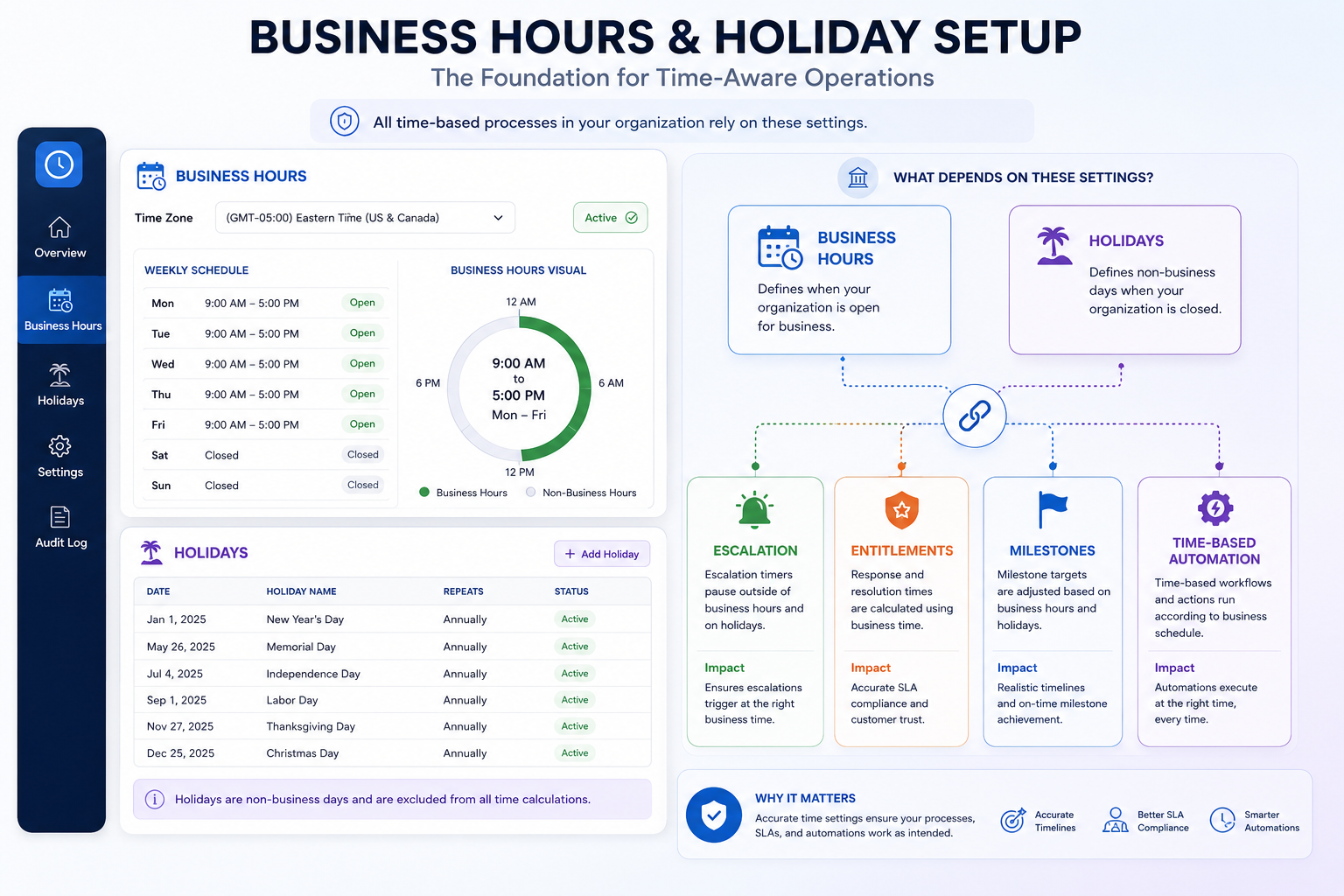
WHAT ARE BUSINESS HOURS?
Defining When Your Team Actually Works
Business Hours specify when your support organization is officially operational:
Components of Business Hours:
- Time Zone
- Geographic location of the organization
- Affects all time calculations across Salesforce
- Example: EST, PST, GMT, IST
- Work Days
- Which days of the week your team works
- Most organizations: Monday–Friday
- Some: 24/5 or 24/7 support
- Can vary by business hours record
- Work Hours
- Start time (e.g., 9:00 AM)
- End time (e.g., 6:00 PM)
- Can vary by day of week
- Example: Monday–Thursday 9 AM–5 PM, Friday 9 AM–3 PM
- Multiple Business Hours Records
- Different business hours for different regions
- Separate hours for different teams
- Different hours for different SLA levels
- Example: US Support: 9-5 EST, EMEA Support: 8-6 GMT, 24/7 Emergency: All hours
Critical Insight:
Salesforce uses Business Hours to calculate elapsed time. If Business Hours are set to 9 AM–5 PM Monday–Friday, a 24-hour SLA actually means 24 business hours (3 full business days), not 24 calendar hours.
WHAT ARE HOLIDAYS?
Excluding Non-Working Days From SLA Calculations
Holidays define days when your organization is closed, regardless of the day of the week:
Holiday Definition:
- Date of the holiday
- Name/description
- Applies globally or to specific business hours
- Repeating or one-time
Common Holidays:
New Year’s Day: January 1
Independence Day: July 4
Thanksgiving: Fourth Thursday in November
Christmas: December 25
Black Friday: Day after Thanksgiving
Company Anniversary: June 15
Why Holidays Matter:
If you don’t configure holidays, SLA timers continue running on those days:
Scenario: Without Holiday Configuration
- Case created Friday 5 PM with 24-hour SLA
- Should expire Monday 5 PM (24 business hours)
- But if Monday is a holiday and not configured:
- SLA expires Sunday 5 PM (calendar calculation)
- System shows SLA violation on a day your team isn’t working
Scenario: With Holiday Configuration
- Case created Friday 5 PM with 24-hour SLA
- Monday is a configured holiday
- SLA correctly expires Tuesday 5 PM
- Accurate SLA tracking
Multi-Holiday Organizations:
Organizations operating globally must account for region-specific holidays:
- US holidays (Thanksgiving, Independence Day)
- UK holidays (Boxing Day, Early May Bank Holiday)
- India holidays (Diwali, Holi)
- Regional company-specific closures
DEPENDENT FEATURES
Which Features Rely on Business Hours and Holidays
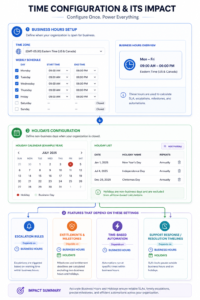
Multiple critical Service Cloud features depend on correct Business Hours and Holiday configuration:
Feature 1: Entitlements and Milestones (SLA Tracking)
What it does:
- Defines SLA targets for different case types
- Tracks response and resolution times
- Triggers milestone actions when targets are reached
- Generates SLA compliance reports
Dependency:
- Uses configured Business Hours to calculate elapsed time
- Applies Holiday exclusions
- Without proper configuration: SLAs are inaccurate
Feature 2: Case Escalation Rules
What it does:
- Automatically escalates cases based on time elapsed
- Reassigns cases when SLA is breached
- Changes case priority or status based on age
Dependency:
- Escalation timing based on Business Hours
- Escalations only trigger during business hours
- Holiday exclusion prevents false escalations
Feature 3: Time-Based Automation
What it does:
- Flow actions that execute after a time delay
- Schedule tasks for future business hours
- Set reminders and notifications
Dependency:
- Delay durations calculated in business hours
- Actions scheduled during business hours only
- Respects holidays for scheduling
Feature 4: Service Level Indicators and Reporting
What it does:
- Tracks SLA compliance metrics
- Generates reports on response/resolution times
- Calculates team performance metrics
Dependency:
- All calculations based on Business Hours
- Holiday exclusions affect trending
- Incorrect configuration skews reports
Feature 5: Case Milestone Tracking
What it does:
- Tracks progress toward SLA targets
- Updates milestone status (In Progress, Complete, Breached)
- Triggers actions on milestone completion/breach
Dependency:
- Milestone calculations use Business Hours
- Time to completion excludes holidays
- Without configuration: milestone metrics are wrong
THE REAL-WORLD SCENARIO
When SLA Tracking Breaks (A Case Study)
The Situation:
A mid-sized support organization implements Salesforce Service Cloud with:
- 24-hour response SLA for all cases
- 48-hour resolution SLA
- Entitlements configured with milestones
- Escalation rules set to trigger on SLA breach
The Problem:
During implementation, the admin quickly configures Business Hours:
- Sets it to 9 AM–6 PM Monday–Friday
- Adds a few obvious holidays (Christmas, New Year)
- Marks the configuration as “Done”
The Hidden Issues:
Issue 1: Missed Holidays
- Thanksgiving not configured
- Monday after Thanksgiving shows SLA violations
- Cases created Wednesday evening appear to violate SLA on Thanksgiving
Issue 2: Regional Operations Ignored
- Organization has EMEA team (8 AM–6 PM GMT)
- Uses single Business Hours record (9 AM–6 PM EST)
- EMEA cases show incorrect timings
Issue 3: Company-Specific Closures
- Annual company meeting: July 15-17
- Not configured as holiday
- Cases show SLA violations during company meeting
The Impact:
- Escalation reports show false violations
- Team appears to have poor SLA compliance (actually meeting targets)
- Management questions team performance
- Customer metrics look worse than reality
- Reports used for decision-making are inaccurate
The Discovery:
Months later, audit reveals:
- Actual SLA compliance is 94%
- Reported compliance is 78%
- Difference is misconfiguration, not performance
- Business Hours and Holidays need urgent reconfiguration
FINAL THOUGHTS
Business Hours and Holidays might seem like minor administrative configurations, but they form the foundation upon which all Service Cloud time-based features operate. They’re the invisible layer that determines whether your SLA tracking is accurate, your escalations trigger correctly, and your performance metrics reflect reality.
The cost of getting these wrong is subtle but significant: inaccurate SLA reports, false escalations, misleading performance metrics, and management decisions based on flawed data. The effort to get them right is relatively small—an audit, careful configuration, thorough testing, and ongoing maintenance.
The key insight is this: before you build complex automations, impressive dashboards, and sophisticated escalation rules, ensure your foundation is solid. Configure your Business Hours accurately for all regions and teams. Comprehensively set up holidays across all your operating locations. Test thoroughly. And review regularly as your organization evolves.