

INTRODUCTION
Salesforce Health Check is one of the org’s most important tools—it monitors security configuration, identifies risks, and provides recommendations for improvement. Yet it’s also one of the most neglected. Admins forget to check it regularly. Security scores decline silently. Risks accumulate unnoticed. Then an audit happens and suddenly everyone’s scrambling to address security issues that have been known for months.
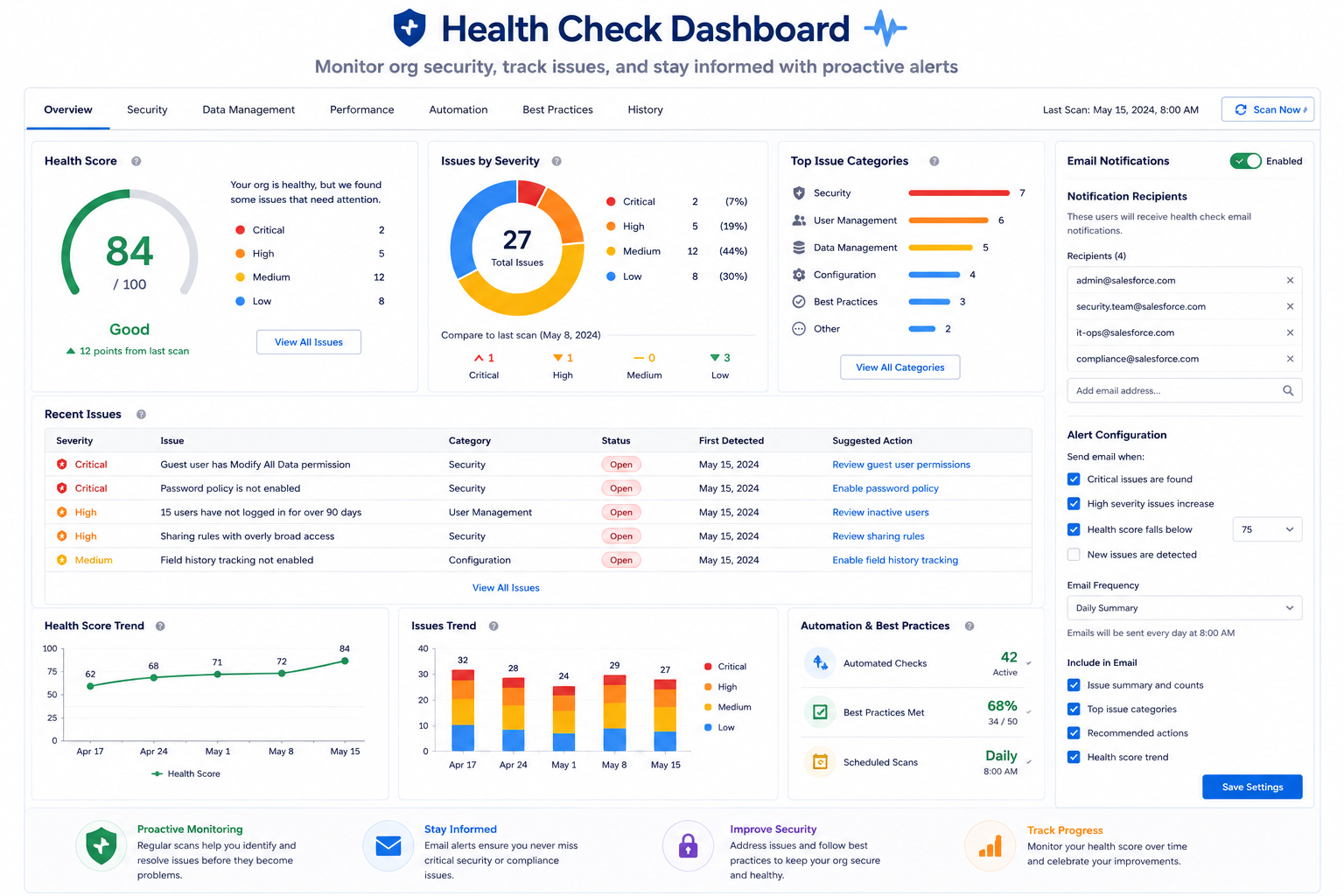
Spring ’26 addresses this problem with automatic Health Check email notifications. When security scores drop, admins are automatically notified. No more remembering to check. No more discovering problems during audits. Proactive monitoring becomes effortless.
This post explores what Health Check notifications do, why proactive monitoring matters, and how to set them up properly.
THE HEALTH CHECK PROBLEM
Why Manual Monitoring Fails
What Health Check Does
Purpose:
Health Check is Salesforce’s diagnostic tool that monitors org security configuration and provides recommendations for improvement.
What It Monitors:
- Password policies
- Two-factor authentication adoption
- API security
- Login security
- Session management
- Encryption settings
- Field-level access
- Custom code quality
- Setup best practices
- Overall security posture
How It Scores:
Health Check produces:
– Overall Security Score (0-100%)
– Risk Level (Good, Warning, Poor)
– Detailed recommendations for improvement
– Category breakdowns (Password Security, Login Security, etc.)
The Problem: Manual Checking
How It Works (Before Spring ’26):
Admin must:
- Navigate to Setup → Health Check
- View current score
- Compare to previous score (mentally, usually)
- Identify changes
- Review recommendations
- Decide what to fix
- Remember to do this regularly
Problems with Manual Approach:
Problem 1: Easy to Forget
- No reminder
- Busy admin forgets
- No alert when score drops
- Issues go undetected for weeks/months
Problem 2: Reactive Not Proactive
- Admin only finds problems if checking
- Usually discovers during audit
- Last minute scramble to fix
- Risk exposure period long
Problem 3: Inconsistent Monitoring
- Some months checked regularly
- Other months forgotten
- No consistent baseline
- Trend tracking missed
Problem 4: Hidden Issues
- Security gaps accumulate
- Admin unaware
- Audit discovers problems
- Credibility damage
- Rushed remediation
Real Scenarios Where This Matters
Scenario 1: Gradual Security Decline
Month 1: Score 85% (Good)
Month 2: Score 80% (Warning)
Month 3: Score 75% (Warning)
Month 4: Score 70% (Poor)
Month 5: Score 65% (Poor)
Month 6: Audit happens
Admin unaware of decline
Multiple issues found during audit
Last-minute fixes
Audit findings unfavorable
Scenario 2: Compliance Audit
Compliance officer: “What’s your org security score?”
Admin: “Let me check…”
Admin navigates to Health Check
Score is 62% (Poor)
Admin embarrassed
Issues found during audit
Compliance concerns raised
Scenario 3: Security Incident
Org has minor security issue
Health Check flagged it 2 months ago
Admin never checked
Issue lingered
Issue exploited
Incident occurs
Post-incident review: “Health Check warned about this”
THE HEALTH CHECK NOTIFICATION FEATURE
Spring ’26 Solution
What Health Check Notifications Do
Core Capability:
Automatically email admins when Health Check score drops.
Trigger:
Score changes significantly (threshold configurable):
If current score < previous score:
→ Email notification sent
→ To configure recipients
→ With score details
→ With recommendations
Notification Content:
Email Subject: “Salesforce Health Check Alert – Score Decreased”
Email Body:
– Previous score: 85%
– Current score: 80%
– Risk level: Warning
– Key areas affected:
– Login Security (dropped 10%)
– Password Policy (dropped 5%)
– Recommendations for improvement
– Link to Health Check dashboard
– Call to action: Review and remediate
Configuration
How to Enable:
- Go to Setup → Health Check
- Look for “Email Notification” section
- Toggle enable/disable
- Add notification recipients
- Save
Who Gets Notified:
Can add:
– Specific admin by username/email
– Multiple recipients
– Distribution lists
– Admin groups
– Custom recipients
Frequency:
Notification sent:
– When score drops below threshold
– Not every minor change
– Only significant declines
– Prevents notification overload
SETTING UP NOTIFICATIONS PROPERLY
Heading: Implementation Best Practices
Step 1: Enable Notifications
In Health Check:
- Navigate to Setup → Health Check
- Find “Email Notification” section
- Click toggle to enable
- Confirm enablement
Step 2: Configure Recipients
Who Should Get Notified:
Definitely Include:
- Primary Salesforce Admin
- Org Security Officer (if exists)
- System Administrator responsible for compliance
Possibly Include:
- Secondary admin (backup)
- Security team manager
- Compliance officer
- CIO or IT director
How to Add:
In notification recipients field:
– Type user name or email
– Click Add
– Repeat for each recipient
– Save configuration
Step 3: Test Configuration
Before Production:
- Create test scenario (sandbox or scratch org)
- Deliberately drop score (disable security feature)
- Verify notification sent
- Check email arrives
- Verify content readable
- Confirm link to Health Check works
Step 4: Document Configuration
Create Record:
Health Check Notifications Setup
Enabled: Yes
Recipients:
– admin@company.com
– security@company.com
Notification threshold: Score drops X%
Last reviewed: [Date]
Next review: [Date]
Purpose:
- Audit trail
- Know who’s notified
- Know configuration
- Easy to update
RESPONDING TO NOTIFICATIONS
What to Do When You Receive an Alert
When Notification Arrives
Step 1: Review the Alert
Email contains:
- Previous score vs current score
- Categories affected
- Risk assessment
- Specific recommendations
- Link to Health Check dashboard
Initial Review:
- Understand what changed
- Note severity
- Identify areas affected
- Plan response time
Step 2: Navigate to Health Check
In Setup:
- Go to Setup → Health Check
- View current score
- Review recommendations
- Understand specific issues
- Identify fixes needed
Step 3: Analyze Issues
For Each Area with Lower Score:
- Understand the issue
- Identify root cause
- Determine fix required
- Estimate effort
- Schedule remediation
Step 4: Plan Remediation
For Each Issue:
Issue: Two-Factor Authentication adoption only 60%
Fix: Require 2FA for all users
Timeline: 2-week rollout with communication
Owner: Security admin
Approval needed: CIO
Communication: User email before enforcement
Step 5: Execute and Track
After Fixing:
- Implement fix
- Verify change in Health Check
- Monitor score improvement
- Document resolution
- Prevent regression
Step 6: Re-Check and Follow Up
After Remediation:
Issue fixed
Health Check score re-checked
Score improved
Document resolution
Monitor for regression
Plan next check
WHAT TO LOOK FOR IN HEALTH CHECK SCORES
Understanding Key Metrics
Critical Areas
Password Policies:
- Minimum password length
- Complexity requirements
- Password history
- Password expiration
Two-Factor Authentication:
- Adoption rate (aim for 100%)
- Enforcement for all users
- Backup authentication methods
Session Management:
- Session timeouts
- Concurrent session limits
- Remember me control
API Security:
- API token expiration
- OAuth token settings
- Remote access policies
Encryption:
- Field-level encryption
- Transmission encryption
- Certificate settings
Common Issues
Issue 1: Low 2FA Adoption
Health Check: “2FA adoption only 60%”
Action: Communicate requirement, enforce gradually
Timeline: 4-week rollout
Expectation: 90%+ adoption
Why: Prevents account compromise
Impact: Major security improvement
Issue 2: Password Policy Weak
Health Check: “Password requirements below recommended”
Action: Update password policies
Changes: Increase length, add complexity, set expiration
Timeline: Immediate, communicate in advance
Why: Prevents brute force attacks
Impact: Moderate security improvement
Issue 3: Session Timeout Long
Health Check: “Session timeout 2 hours”
Action: Reduce to 30 minutes
Trade-off: Impacts user convenience
Timeline: Gradual reduction
Why: Limits unauthorized access
Impact: Moderate security improvement
FINAL THOUGHTS
Health Check email notifications are exactly what they appear to be: a quality-of-life improvement for admins. But quality-of-life improvements often have outsized importance. Small features that remove friction create big behavioral changes.
Before notifications, checking Health Check was optional and easily forgotten. After notifications, admins have no excuse—issues are brought to attention automatically. Proactive monitoring becomes the default behavior instead of a nice-to-have.
The security benefit is real. Issues caught early are solved cheaply. Issues discovered during audits are solved expensively. Automatic notifications shift the balance toward early detection.
For any Salesforce admin, enabling Health Check notifications is a zero-effort decision with disproportionate benefit. Takes five minutes to set up. Provides months of automatic security monitoring. Prevents audit surprises. Enables proactive risk management.
More broadly, it exemplifies Salesforce’s approach to platform improvement: identify friction points in admin workflows and remove them. Make the right thing (security monitoring) the path of least resistance. Let automation handle what shouldn’t require manual effort.
If you haven’t enabled Health Check notifications, consider it a must-do. If you have, make sure the right people are subscribed. Either way, use the notifications as a trigger for action, not just information. Health Check scores matter. When they drop, something has changed and deserves investigation.