

INTRODUCTION
In many real-world business scenarios, a single contact does not belong to just one organization. A consultant works across multiple clients. A partner representative manages relationships with several companies. A contractor operates under different business entities depending on the engagement.
Salesforce’s Contact to Multiple Accounts feature addresses this reality at the data model level — but enabling the feature is only the beginning. The real challenge is building a user experience that makes multi-account relationships meaningful for the contact who is actually working across those organizations.
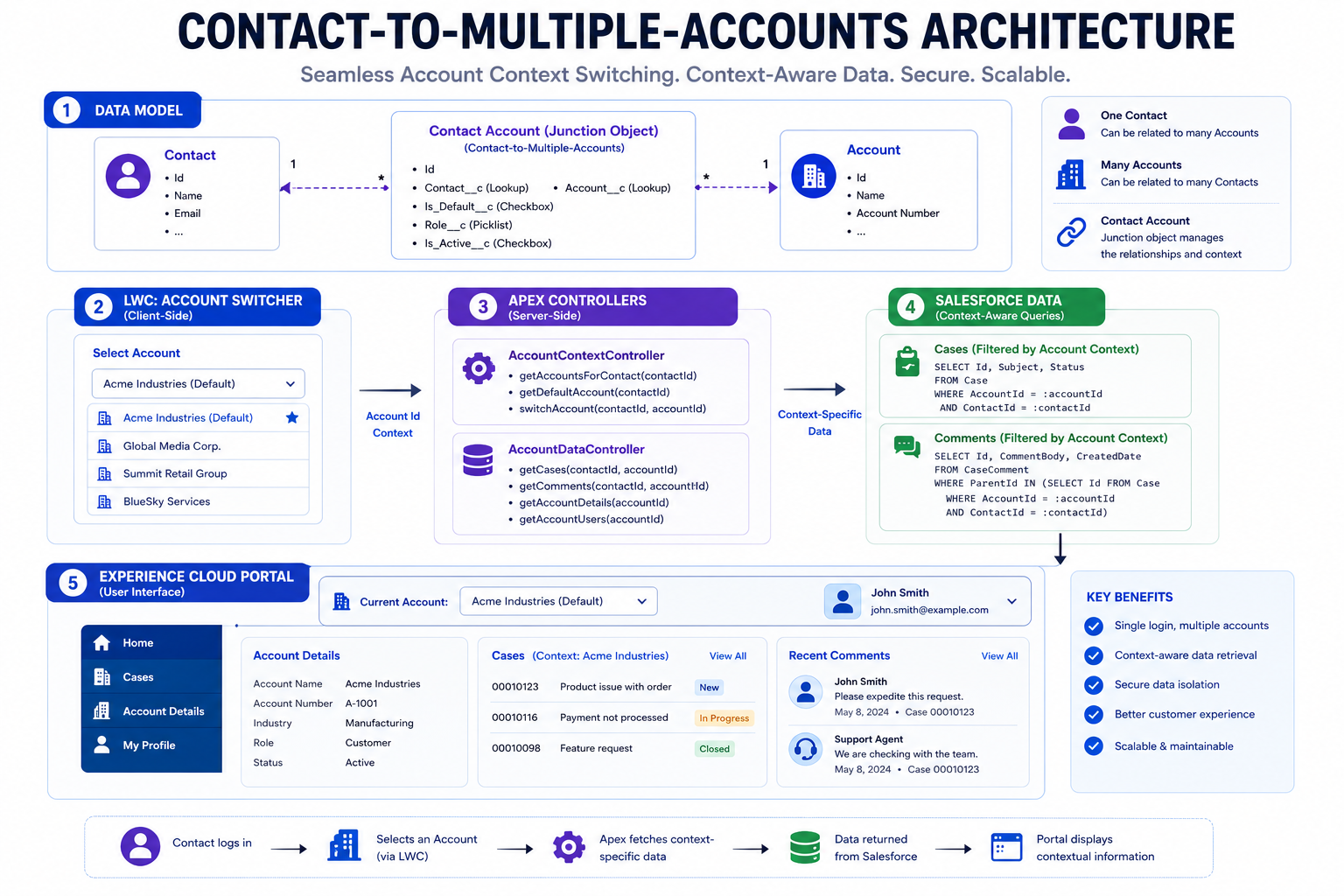
Recently, I worked on implementing Contact to Multiple Accounts in Salesforce and delivered a real-world solution using Lightning Web Components and Apex, integrated within a Salesforce Experience Cloud site. The result was a dynamic account switcher that allows logged-in contacts to seamlessly switch between their associated accounts and see context-specific cases and discussions for each one.
This blog covers what was built, how it was built, the business value it delivers, and the key learnings that came from designing a scalable, user-centric solution on the Salesforce platform.
THE CHALLENGE
When One Contact Belongs to Multiple Organizations
The standard Salesforce data model assumes a contact belongs to one account. For many organizations, this assumption holds. But for others — particularly those working with partners, consultants, contractors, or enterprise clients with complex organizational structures — it breaks down quickly.
Real-World Scenarios Where One Contact Needs Multiple Accounts:
- A consulting firm partner who manages engagements across several client organizations
- A vendor representative who works with multiple business units under different account structures
- A contractor who operates under their own entity but also represents a parent organization
- A healthcare professional affiliated with multiple hospital systems or practice groups
- A financial advisor who manages relationships across several institutional clients
What Happens Without a Proper Solution:
- Contacts are duplicated — one record per account — creating data quality problems
- Support cases cannot be viewed across accounts without separate logins
- The user experience requires contacts to log in and out repeatedly to access different account contexts
- Reporting on contact activity across organizations becomes fragmented and unreliable
- The support portal does not reflect the contact’s actual multi-organization reality
The Opportunity: Salesforce natively supports Contact to Multiple Accounts through the AccountContactRelation object. But enabling the feature and building an experience that leverages it are two different things. This implementation closed that gap with a purpose-built LWC solution deployed in an Experience Cloud site.
WHAT WAS BUILT
A Full-Stack LWC and Apex Solution for Multi-Account Contact Experiences
The solution delivered four interconnected capabilities that work together to create a seamless multi-account experience for logged-in contacts.
Capability 1: Contact to Multiple Accounts Enabled The foundation was enabling the Contact to Multiple Accounts feature in Salesforce Setup. This activates the AccountContactRelation object, which stores the relationships between a contact and each of their associated accounts. Every subsequent capability in the solution builds on this data model change.
Capability 2: LWC-Based Account Switcher The core of the user experience is a custom Lightning Web Component that allows logged-in contacts to see all of their associated accounts and switch between them without logging out and back in. The component fetches the contact’s account relationships through an Apex controller and renders them as selectable options in the Experience Cloud site interface.
Capability 3: Context-Based Case and Comment Display When a contact selects an account from the switcher, the UI dynamically updates to display Cases associated with that specific account — along with related Case Comments. The contact sees only the Cases and discussions relevant to the currently selected account context. Switching accounts instantly refreshes the displayed data without a page reload.
Capability 4: Apex Controllers for Data Retrieval Behind the LWC components, Apex controllers handle all data retrieval. The controllers query the AccountContactRelation object to fetch associated accounts, query Cases filtered by the selected account, and retrieve Case Comments linked to those Cases. All queries respect Salesforce’s sharing model, ensuring contacts see only the data they are permitted to access.
IMPLEMENTATION DETAILS
How the Solution Was Built — Step by Step
Step 1: Enable Contact to Multiple Accounts
The first step was enabling the feature in Salesforce Setup. Once enabled, the AccountContactRelation object becomes available and every existing contact-account relationship is represented as an AccountContactRelation record. New relationships can be created by adding additional accounts to a contact record.
Key configuration actions:
- Navigate to Setup and enable Contact to Multiple Accounts
- Verify that existing contact-account relationships have been migrated to AccountContactRelation records
- Define which relationship roles are relevant to the business use case
- Configure sharing settings to ensure Experience Cloud users can access their related account data
Step 2: Build the Apex Controller for Account Retrieval
The first Apex controller fetches all accounts associated with the logged-in contact through the AccountContactRelation object.
public with sharing class ContactAccountController {
@AuraEnabled(cacheable=true)
public static List<AccountContactRelation> getAssociatedAccounts() {
Id contactId = [
SELECT ContactId FROM User
WHERE Id = :UserInfo.getUserId()
].ContactId;
return [
SELECT AccountId, Account.Name, Roles
FROM AccountContactRelation
WHERE ContactId = :contactId
AND IsActive = true
];
}
}
This controller uses the running user’s contact ID to retrieve all active account relationships, returning the account name and relationship roles for display in the switcher component.
Step 3: Build the Apex Controller for Case and Comment Retrieval
The second Apex controller fetches Cases and their related Comments filtered by the selected account ID
public with sharing class AccountCaseController {
@AuraEnabled(cacheable=true)
public static List<Case> getCasesForAccount(Id accountId) {
return [
SELECT Id, CaseNumber, Subject, Status,
Priority, CreatedDate,
(SELECT Id, CommentBody, CreatedDate,
CreatedBy.Name
FROM CaseComments
ORDER BY CreatedDate DESC)
FROM Case
WHERE AccountId = :accountId
ORDER BY CreatedDate DESC
];
}
}
The with sharing keyword ensures the query respects the contact’s sharing access, returning only Cases the logged-in user is permitted to see.
Step 4: Build the Account Switcher LWC
The account switcher component renders the list of associated accounts and manages the selected account state.
javascript
import { LightningElement, wire, track } from ‘lwc’;
import getAssociatedAccounts from
‘@salesforce/apex/ContactAccountController.getAssociatedAccounts’;
export default class AccountSwitcher extends LightningElement {
@track selectedAccountId;
@track accounts = [];
@wire(getAssociatedAccounts)
wiredAccounts({ data, error }) {
if (data) {
this.accounts = data.map(relation => ({
label: relation.Account.Name,
value: relation.AccountId
}));
if (this.accounts.length > 0) {
this.selectedAccountId = this.accounts[0].value;
}
}
}
handleAccountChange(event) {
this.selectedAccountId = event.detail.value;
this.dispatchEvent(new CustomEvent(‘accountchange’, {
detail: { accountId: this.selectedAccountId }
}));
}
}
When the contact selects a different account, the component dispatches a custom event that the parent component listens to, triggering a data refresh for the newly selected account context.
Step 5: Build the Case Display LWC
The case display component listens for account selection changes and dynamically fetches and renders the relevant Cases and Comments.
javascript
import { LightningElement, wire, track, api } from ‘lwc’;
import getCasesForAccount from
‘@salesforce/apex/AccountCaseController.getCasesForAccount’;
export default class AccountCaseViewer extends LightningElement {
@api accountId;
@track cases = [];
@wire(getCasesForAccount, { accountId: ‘$accountId’ })
wiredCases({ data, error }) {
if (data) {
this.cases = data;
}
}
}
The reactive accountId property — prefixed with $ in the wire adapter — ensures that whenever the selected account changes, the wire service automatically re-fetches Cases for the new account without requiring a manual refresh call.
Step 6: Deploy to Experience Cloud
With components built and tested in a scratch org, the solution was deployed to the Experience Cloud site. The account switcher and case viewer components were added to the relevant Experience Cloud page, configured with the appropriate visibility settings, and tested with contact users who had multiple account relationships.
BUSINESS VALUE
Why This Solution Matters for Real-World Scenarios
Value 1: Context-Based Visibility Contacts see Cases and discussions specific to the account they are currently working with. There is no confusion about which Cases belong to which organization. The interface reflects the contact’s current work context, not a flat list of all Cases across all accounts.
Value 2: Seamless Account Switching Switching between associated accounts requires a single selection in the UI. There is no logout and re-login. There is no separate portal for each organization. The contact’s full multi-account relationship is accessible within a single authenticated session.
Value 3: Better, More Efficient User Experience Contacts who work across multiple organizations spend less time navigating and more time finding the information they need. The experience reflects their actual working reality rather than the simplified single-account assumption of a standard portal.
Value 4: Improved Data Integrity Because contacts are not duplicated across accounts — each contact has one record with multiple account relationships — data quality improves. Communications, cases, and interactions are associated with the correct contact regardless of which account context they occur in.
Value 5: Scalable for Growing Relationship Complexity As a contact’s account relationships grow — new clients, new engagements, new organizational structures — the solution scales automatically. Adding a new account relationship in Salesforce immediately makes it available in the Experience Cloud switcher without any code changes.
KEY LEARNING
What This Implementation Taught Me
Learning 1: Enabling a Feature and Leveraging It Are Different Things Contact to Multiple Accounts is a Salesforce setup toggle. What it enables — the AccountContactRelation object and the data model that supports multi-account relationships — requires deliberate design to expose meaningfully to users. The real work begins after the feature is enabled.
Learning 2: Reactive Wire Adapters Are Powerful Using the $ prefix to make accountId reactive in the wire adapter was one of the most elegant aspects of the implementation. When the selected account changes, the wire service handles the re-fetch automatically. No imperative Apex calls, no manual refresh logic — the reactivity model does the work.
Learning 3: Sharing Model Matters More in Multi-Account Contexts In a single-account portal, sharing is relatively straightforward — users see their account’s data. In a multi-account context, the sharing model needs careful thought. The with sharing keyword on Apex controllers ensures contacts only see data they are permitted to access, but the sharing rules themselves need to be designed with multi-account relationships in mind.
Learning 4: Experience Cloud Context Adds Complexity Building for Experience Cloud introduces considerations that internal Salesforce development does not — guest user access, authenticated user sessions, community page layouts, and component visibility rules all affect how components behave. Testing with actual community user profiles is essential before go-live.
Learning 5: User-Centric Design Drives Technical Decisions The account switcher pattern — where selecting an account refreshes all related data — came from thinking about how a contact actually works, not from what was technically easiest to build. The reactive architecture, the custom event pattern, and the context-based data display all follow from the user experience requirement, not the other way around.
BEST PRACTICES
Design Principles for Contact-to-Multiple-Accounts Implementations
Best Practice 1: Audit Your Data Model Before Enabling the Feature Before enabling Contact to Multiple Accounts, review how your org currently manages contact-account relationships. Understand which contacts have multiple relationships that will need to be explicitly created, and plan the data migration required to represent those relationships in AccountContactRelation records.
Best Practice 2: Use with sharing on All Apex Controllers In an Experience Cloud context, sharing enforcement is critical. Always use with sharing on Apex controllers exposed to community users. Test with community user profiles — not internal users — to validate that sharing rules produce the expected data visibility.
Best Practice 3: Design for Reactivity From the Start Build LWC components with reactive properties from the beginning rather than adding reactivity as an afterthought. Identify which properties represent user selections or context changes, and wire data retrieval to those properties using the $ prefix pattern to enable automatic re-fetching.
Best Practice 4: Handle Empty States Gracefully Not every contact will have multiple account relationships. Not every account will have associated Cases. Design components to handle empty states — no accounts, no cases, no comments — with clear, user-friendly messaging rather than blank or broken UI states.
Best Practice 5: Test With Realistic Multi-Account Data Test the solution with contacts who have varying numbers of account relationships — one account, two accounts, five accounts — to ensure the switcher renders correctly and performance remains acceptable across different relationship volumes.
Best Practice 6: Consider Performance for High Case Volumes If accounts have large numbers of Cases, consider adding pagination or limiting the initial Case query to recent records. An unbounded SOQL query against a high-volume account can affect page load performance in an Experience Cloud site where multiple components load simultaneously.
KEY INSIGHT
Real-World Relationships Require Real-World Solutions
Salesforce’s standard data model reflects common scenarios. Real-world business relationships are more complex. The gap between what the platform enables by default and what real users actually need is where custom development delivers its greatest value.
Contact to Multiple Accounts is a perfect example. The feature exists. The data model supports it. But making it meaningful to a contact logging into an Experience Cloud site — seeing their accounts, switching between them, viewing context-specific Cases and conversations — requires deliberate design and purpose-built components.
The combination of LWC’s reactivity model, Apex’s data access capabilities, and Experience Cloud’s authenticated user context makes this kind of real-world solution possible without excessive complexity. The platform provides the building blocks. Good architecture assembles them into something genuinely useful.
Final Thought
Building the Contact-to-Multiple-Accounts solution reinforced a principle that drives the best Salesforce implementations: the goal is not to configure what the platform provides by default. The goal is to deliver what users actually need — and to use the platform’s capabilities to bridge that gap as elegantly as possible.
The account switcher, the context-based case display, the reactive data model, the Apex controllers respecting the sharing model — each of these decisions followed from understanding how a contact who works across multiple organizations actually thinks about their work.
Building real-world Salesforce solutions means starting with the user’s reality and working backward to the technical implementation. That is what this project delivered — and that is what made it worth building.