

INTRODUCTION
For years, Salesforce developers have wanted a simple way to navigate users from Screen Flows to record pages or external sites. Before Summer ’26, the workarounds were clunky: custom JavaScript in Visualforce, external URLs passed to Lightning Console, or manual navigation instructions to users.
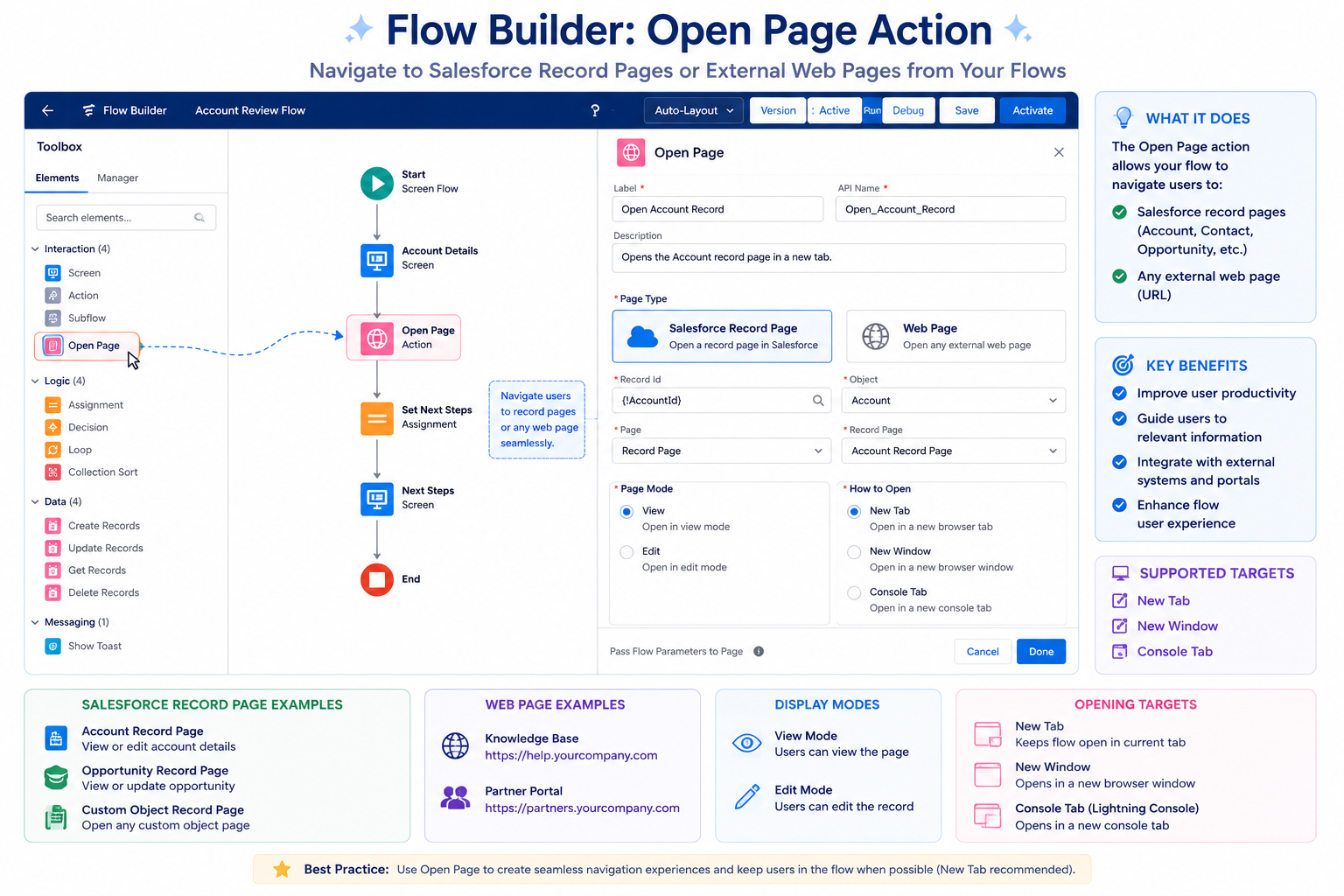
Salesforce’s solution is elegantly simple: the native Open Page action in Flow Builder. With it, flows can navigate users directly to Salesforce record pages or external web pages, with full control over how the page opens—new browser tab, new window, or new Lightning Console tab.
It’s a small feature that solves a real problem. This post explores what the Open Page action does, how to use it, and how it changes flow design patterns.
THE NAVIGATION PROBLEM IN FLOWS
Why This Feature Was Needed
The Before Scenario
User Flow (Pre-Summer ’26):
- User starts Screen Flow
- Flow asks for information
- User completes flow
- Flow ends
- User manually navigates to record page
- Or user gets instructed: “Go to Accounts and find Account XYZ”
Problems:
Problem 1: Manual Navigation
- User must find the record themselves
- Time-consuming
- Error-prone (wrong record)
- Poor user experience
Problem 2: Lost Context
- User finishes flow, loses context
- Must navigate system separately
- Two-step process for one task
Problem 3: No Programmatic Control
- Can’t navigate based on flow results
- Can’t pass dynamic record IDs
- Can’t control tab/window behavior
- Workarounds were hacky
Problem 4: External Pages
- No native way to link to external sites
- Had to use custom solutions
- Integration with external systems awkward
- No flow-native pattern
Real-World Examples Where This Mattered
Example 1: Lead Conversion Flow
- User converts lead
- Flow creates Account, Contact, Opportunity
- Old way: Flow ends, user must find new Opportunity
- New way: Flow opens Opportunity record directly
Example 2: Case Resolution Flow
- Support agent resolves case
- Flow creates follow-up task
- Old way: Agent must navigate to Task record
- New way: Flow opens Task in new tab (doesn’t lose case)
Example 3: Renewal Flow
- Sales rep processes renewal
- Flow updates Opportunity
- Old way: Flow ends, rep manually navigates to updated Opp
- New way: Flow opens updated Opportunity automatically
Example 4: External Integration
- Flow creates support ticket in external system
- Old way: Flow ends, user must manually navigate to external portal
- New way: Flow opens external portal directly
WHAT THE OPEN PAGE ACTION DOES
Feature Capabilities
What You Can Do
Navigation Target 1: Salesforce Record Pages
Navigate to any Salesforce record:
- Account pages
- Contact pages
- Opportunity pages
- Custom object records
- Any standard or custom object
How It Works:
- Provide Object Type (Account, Contact, etc.)
- Provide Record ID (can be dynamic from flow)
- Choose View or Edit mode
- Page opens with that record
Example:
Flow creates new Opportunity
Captures OpportunityId
Open Page action:
– Page Type: Salesforce Record Page
– Object Name: Opportunity
– Record ID: [OpportunityId from flow]
– View Mode: Edit
Opens newly created Opportunity in Edit mode
Navigation Target 2: External Web Pages
Navigate to any external URL:
- Third-party applications
- External portals
- Support ticketing systems
- Documentation sites
- Custom web applications
How It Works:
- Provide full URL
- URL can be dynamic (built from flow variables)
- Page opens at specified target
Example:
Flow captures customer email
Builds Zendesk support portal URL with customer ID
Open Page action:
– Page Type: External URL
– URL: https://support.zendesk.com/portal/customer/{customerId}
Opens Zendesk portal with customer data
Control Over Opening Behavior
Opening Target 1: New Browser Tab
- Opens page in new tab
- User’s original tab/window remains open
- Use case: Don’t lose context of original work
Opening Target 2: New Browser Window
- Opens page in new window
- Separate from browser tabs
- Use case: Keep primary window clear
Opening Target 3: New Lightning Console Tab
- Opens in new Lightning Console tab
- Only available in Lightning Console workspaces
- Use case: Lightning Console navigation patterns
Opening Target 4: Same Window (Default)
- Replaces current page
- Use case: Linear workflows where navigation away is intended
Data Passing
Dynamic Record IDs:
Flow can pass dynamic record IDs:
Flow variable: selectedAccountId
Open Page action receives: {selectedAccountId}
Navigates to that specific Account
Dynamic URLs:
Flow can build dynamic URLs:
Flow variable: customerId = “12345”
Flow builds URL: https://portal.example.com/customer/12345
Open Page action navigates to built URL
TECHNICAL CONFIGURATION
How to Configure Open Page Action
Step 1: Add Open Page Action to Flow
In Flow Builder:
- Add action element to flow
- Choose “Open Page” action
- Configure action
Step 2: Configure Page Type
Option A: Salesforce Record Page
Fields:
- Object Name: Select Salesforce object (Account, Contact, etc.)
- Record ID: Provide record ID (can be dynamic from flow)
- View Mode: Choose View or Edit
Example:
Object Name: Opportunity
Record ID: [OpportunityId from Create Record]
View Mode: Edit
Option B: External URL
Fields:
- URL: Provide full URL
- Can include dynamic values from flow variables
Example:
URL: https://support.zendesk.com/portal/customer/{customerId}
(where {customerId} is replaced with flow variable value)
Step 3: Configure Opening Target
Choose one:
- New Browser Tab: Recommended for most cases
- New Browser Window: When you want separate window
- New Lightning Console Tab: When in Lightning Console
- Same Window: Only if flow is final step
Step 4: Test in Sandbox
Testing Checklist:
- Record ID is correctly passed
- Correct object opens
- View vs Edit mode works as expected
- Opening target works as configured
- External URLs open correctly
- Dynamic URLs build correctly
DESIGN CONSIDERATIONS
Best Practices for Using Open Page Action
Best Practice 1: Consider User Context
Question: Does opening a new page make sense?
Yes (use Open Page):
- User needs to see result immediately
- User needs to edit newly created record
- Confirmation is important
- External system integration
No (don’t use Open Page):
- Flow completes background automation
- User doesn’t need to see result
- Flow ends a multi-step process
- User returns to original page naturally
Best Practice 2: Choose Appropriate Opening Target
New Browser Tab:
- User’s original page stays open
- Good when you don’t want to lose context
- Most common choice
- Recommended for most cases
New Browser Window:
- Separate, uncluttered view
- Good for detailed review
- Less common
- Use when dedicated focus needed
Same Window:
- Flow is final destination
- No need for context switching
- Good for linear processes
- User understands they’re moving to new page
Lightning Console Tab:
- Only in Lightning Console workspaces
- Follows console navigation patterns
- Good for workspace-based workflows
Best Practice 3: Provide Clear Flow Labels
Flow step labels should indicate navigation:
- Good: “Open New Opportunity”
- Good: “Navigate to Account”
- Bad: “Open Page”
- Bad: “Action”
Clarity helps flow users understand what happens.
Best Practice 4: Handle Dynamic Data Carefully
When Using Dynamic Record IDs:
- Ensure record ID is captured from previous step
- Handle null/empty cases
- Test with various scenarios
When Building Dynamic URLs:
- Test URL construction
- Verify variables are replaced correctly
- Handle special characters (URL encoding)
- Test with real external systems
Best Practice 5: Consider Error Handling
What if record doesn’t exist?
- Flow still executes Open Page action
- Page opens to non-existent record
- Consider validation before Open Page
Pattern:
Create Record → Check if ID populated
If ID exists → Open Page
If ID empty → Show error message
Best Practice 6: Document Navigation Intent
Document in flow description:
After approval, this flow opens the Quote record
so the approver can verify the approval status.
Navigation target: New Browser Tab
This allows the approver to keep original page open.
Helps future maintainers understand design.
IMPACT ON FLOW DESIGN
How This Changes Flow Architecture
Before Summer ’26: Navigation Workarounds
Workaround 1: Redirect to Custom Apex Page
- Create Visualforce page that redirects
- Complex, harder to maintain
- Not declarative
Workaround 2: Pass URL to Lightning Console
- Only works in console
- Limited to console navigation patterns
- Not standardized
Workaround 3: Instructions to User
- Flow provides record ID or link
- User manually navigates
- Poor user experience
- Error-prone
Workaround 4: External Action to Custom Code
- Call custom Apex or LWC
- More complex than needed
- Harder to maintain
After Summer ’26: Native Solution
Native Open Page Action:
- Built-in, no custom code needed
- Works in all environments
- Declarative, easy to maintain
- Better user experience
- Standard pattern
Impact:
Flows become more powerful. Navigation becomes native. User experience improves.
Design Pattern Evolution
Old Pattern:
Screen Flow → Process Logic → End
(User must navigate manually)
New Pattern:
Screen Flow → Process Logic → Open Page to Result
(Automatic navigation to next step)
Benefit:
Flows can now be complete user journeys, not just isolated processes.
FINAL THOUGHTS
The Open Page action seems like a small feature, but it’s genuinely useful. It solves a real problem that developers have worked around for years. Instead of complex workarounds, you now have a simple, native action.
More importantly, it enables better flow design. Flows can now guide users through complete journeys, not just isolated processes. Create a record, then open it. Process an approval, then show the result. Integrate with external systems, then navigate to them.
For admins and developers who build flows, this is a capability worth learning and using. It makes flows more valuable to end users by providing seamless navigation and better feedback.
As Salesforce continues enhancing Flow Builder—with features like AI-generated flows, collapsible branches, lwc:on dynamic events, and now native navigation—flows become increasingly competitive with traditional Apex development. The gap narrows. Flow becomes the primary automation tool for more and more use cases.
The Open Page action is a small piece of that larger trend. Simple to use. High impact. Part of making Flow Builder more complete as an automation platform.