

INTRODUCTION
Organizations generate massive amounts of data every day.
Sales teams manage opportunities.
Support teams handle customer cases.
Marketing teams track campaign performance.
Executives monitor business growth.
Much of this information already exists inside Salesforce.
However, having data is not the same as having insights.
Business leaders need dashboards, trends, forecasts, and visual analytics that help them make informed decisions quickly.
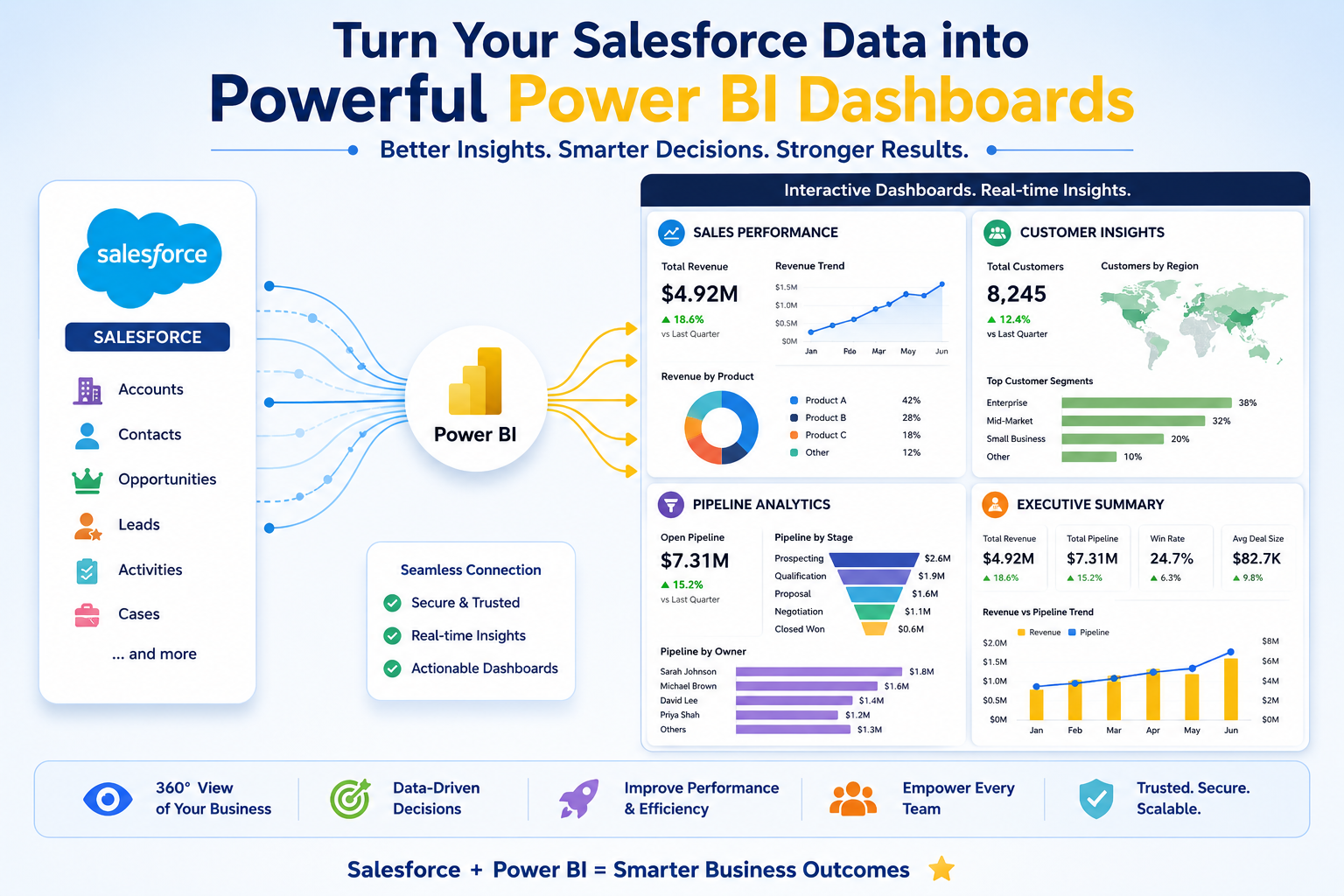
This is where Microsoft Power BI becomes a powerful companion to Salesforce.Recently, I worked through the process of integrating Salesforce with Power BI and explored how organizations can transform CRM data into actionable business intelligence.
The setup is straightforward, but the value it unlocks can be significant.
WHY SALESFORCE DATA NEEDS ANALYTICS
Turning CRM Data Into Business Intelligence
Salesforce stores valuable business information:
- Accounts
- Opportunities
- Leads
- Contacts
- Cases
- Campaigns
- Activities
While Salesforce provides native reporting capabilities, organizations often require:
- Advanced visualizations
- Cross-system reporting
- Executive dashboards
- Trend analysis
- Predictive insights
- Enterprise-level analytics
Power BI helps bridge that gap.
Instead of looking at raw records, stakeholders can view meaningful business metrics in real time.
PREREQUISITES FOR INTEGRATION
What You Need Before Connecting Salesforce and Power BI
Before beginning the integration process, several requirements should be in place.
Requirement 1: Active Salesforce Org
Supported editions typically include:
- Enterprise Edition
- Unlimited Edition
- Developer Edition
Requirement 2: API Access
The Salesforce user performing the connection must have API access enabled.
Without API access, Power BI cannot retrieve Salesforce data.
Requirement 3: Power BI Desktop
Install the latest version of Power BI Desktop to ensure compatibility and access to the latest connector enhancements.
Requirement 4: Object Permissions
The connected user must have access to required Salesforce objects.
Examples:
- Accounts
- Contacts
- Opportunities
- Cases
Requirement 5: Salesforce Credentials
Valid Salesforce credentials are required for OAuth authentication.
This ensures secure access to organizational data.
CONNECTING SALESFORCE TO POWER BI
The Integration Process
Power BI includes native Salesforce connectors, making setup relatively simple.
Step 1: Open Power BI Desktop
Launch Power BI Desktop and select:
Get Data
Step 2: Choose Salesforce Connector
Available options typically include:
- Salesforce Objects
- Salesforce Reports
Choose the option that best fits your reporting needs.
Step 3: Authenticate
Power BI redirects users to Salesforce OAuth authentication.
Enter:
- Username
- Password
- Security Requirements
After successful authentication, Power BI gains authorized access.
Step 4: Select Salesforce Data
Choose the required objects.
Examples:
- Accounts
- Opportunities
- Contacts
- Cases
Step 5: Load and Transform Data
Use Power Query to:
- Clean data
- Rename columns
- Filter records
- Create relationships
Step 6: Build Dashboards
Create interactive reports and visualizations tailored to business requirements.
PRODUCTION VS CUSTOM CONNECTION
Understanding the Difference
One area that often creates confusion is the connection type.
Production Connection
Power BI automatically connects to the standard Salesforce production environment.
This is the simplest option for most organizations.
Custom Connection
Users manually enter the Salesforce URL.
This is useful when connecting to:
- Sandboxes
- Custom Domains
- Specialized Salesforce environments
Understanding this distinction helps avoid authentication issues during setup.
BUSINESS USE CASES
Where the Integration Delivers Value
Use Case 1: Sales Performance Analytics
Track:
- Revenue
- Opportunity Stages
- Win Rates
- Forecast Accuracy
Sales leaders gain real-time visibility into pipeline performance.
Use Case 2: Customer Insights
Analyze:
- Account Growth
- Customer Segmentation
- Engagement Trends
This supports better customer relationship management.
Use Case 3: Service Performance Monitoring
Combine Salesforce Case data with Power BI dashboards.
Track:
- Resolution Time
- SLA Compliance
- Agent Productivity
- Customer Support Trends
Use Case 4: Executive Dashboards
Provide leadership teams with:
- Revenue Trends
- Growth Metrics
- Strategic KPIs
All within a single dashboard.
Use Case 5: Marketing Analytics
Measure:
- Campaign Effectiveness
- Lead Conversion Rates
- Marketing ROI
BENEFITS OF SALESFORCE + POWER BI
Why Organizations Invest in This Integration
Benefit 1: Better Decision-Making
Data becomes easier to interpret and act upon.
Benefit 2: Real-Time Visibility
Executives can monitor business performance continuously.
Benefit 3: Interactive Dashboards
Users can explore data rather than relying on static reports.
Benefit 4: Cross-Functional Reporting
Combine Salesforce data with external business systems.
Benefit 5: Scalability
Power BI supports growing data volumes and enterprise reporting requirements.
BEST PRACTICES
Building Effective Analytics Solutions
Best Practice 1
Use dedicated integration users for Power BI connections.
Best Practice 2
Limit access to only required Salesforce objects.
Best Practice 3
Clean and transform data before building reports.
Best Practice 4
Create reusable datasets for consistency.
Best Practice 5
Monitor refresh schedules and API consumption.
KEY LEARNING
What This Integration Reinforced
Learning 1
CRM data becomes significantly more valuable when visualized effectively.
Learning 2
Business intelligence drives better strategic decisions.
Learning 3
Power BI and Salesforce complement each other extremely well.
Learning 4
Data accessibility improves organizational agility.
Learning 5
Analytics should support action, not just reporting
KEY INSIGHT
Data Alone Doesn’t Create Value — Insights Do
Most organizations already possess the information they need to improve performance.
The challenge is making that information visible, understandable, and actionable.
Salesforce captures the data.
Power BI transforms it into insights.
Together, they create a powerful foundation for data-driven decision-making across sales, service, marketing, and executive leadership.
FINAL THOUGHT
Integrating Salesforce with Power BI is more than a technical exercise.
It is a strategic step toward building a data-driven organization.
By connecting CRM data with advanced analytics capabilities, businesses gain deeper visibility into customer behavior, sales performance, service operations, and overall business health.
The integration process is straightforward, but the impact can be transformative.
When organizations move beyond collecting data and begin leveraging it for decision-making, they unlock the true value of their Salesforce investment.