

INTRODUCTION
Field-level security (FLS) in Salesforce is designed to control which users see which fields. It’s a fundamental security control that allows organizations to hide sensitive data from users who don’t need it. A user without FLS access to a field can’t see it on record pages, in reports, or in APIs.
Spring ’26 introduces a new permission that challenges this model: “View All Fields.” When enabled, it allows users to see all fields on an object, regardless of their field-level security configuration. It’s powerful, potentially useful, and potentially dangerous depending on how it’s used.
This post explores what the “View All Fields” permission does, why Salesforce added it, when it’s appropriate to use, and critical security considerations for administrators.
UNDERSTANDING FIELD-LEVEL SECURITY
How FLS Currently Works
Field-Level Security Basics
What FLS Does:
- Controls field visibility at the profile/permission set level
- User without FLS read access: can’t see field
- User without FLS edit access: can see but can’t edit field
- Applies to:
- Record page layouts
- Reports
- Dashboards
- List views
- API responses
- Flows and Apex
How It Works:
User tries to access field
→ System checks profile/permission set
→ If FLS allows read: User sees field
→ If FLS allows edit: User can modify field
→ If FLS blocks: User doesn’t see field at all
Example:
Account object has fields:
– Name (visible to all)
– Annual Revenue (Finance only – FLS restricts)
– Credit Limit (Finance only – FLS restricts)
Sales user:
– Can see Name
– Cannot see Annual Revenue (no FLS read)
– Cannot see Credit Limit (no FLS read)
Finance user:
– Can see Name
– Can see Annual Revenue (FLS allows read)
– Can edit Credit Limit (FLS allows read + edit)
Why FLS Matters
Security Purpose:
- Prevents unauthorized data access
- Enforces data classification
- Complies with data protection regulations
- Ensures least privilege access
Common Use Cases:
- Hide salary data from non-HR
- Hide social security numbers
- Hide financial data from non-Finance
- Hide health information from non-Medical
- Hide personal data from non-Admin
THE “VIEW ALL FIELDS” PERMISSION
What the New Permission Does
What “View All Fields” Permission Is
Definition:
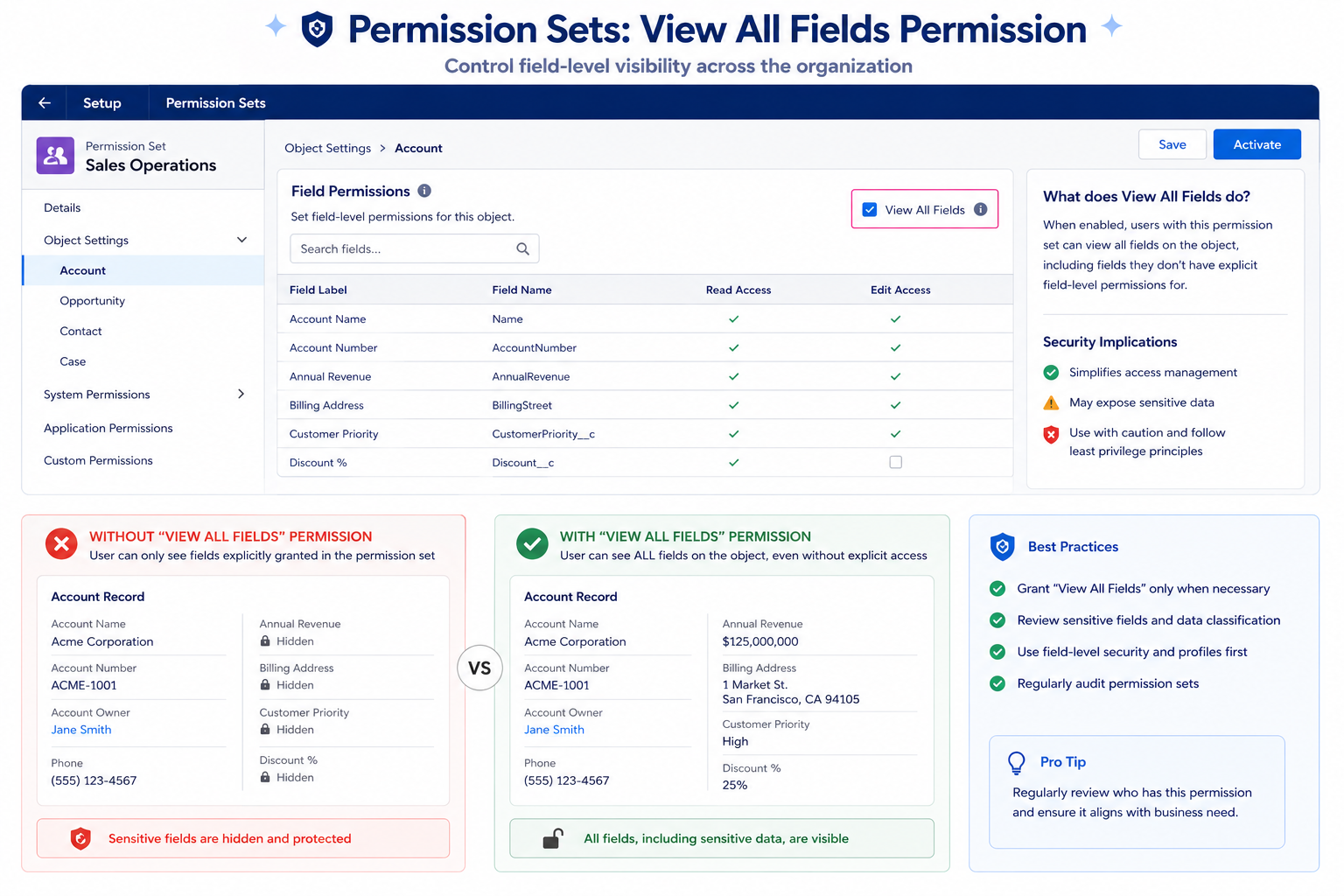
A permission that grants read-only visibility to all fields on an object, regardless of field-level security configuration.
Key Characteristic:
- Bypasses field-level security restrictions
- Applies to all fields on the selected object
- Read-only (doesn’t grant edit access)
- Can be assigned per object or globally
What It Does
User Experience:
- Without “View All Fields” permission:
- User sees fields their profile/permission set allows
- Sensitive fields hidden by FLS
- With “View All Fields” permission:
- User sees all fields on object
- Even fields normally hidden by FLS
- FLS restrictions bypassed for visibility only
Concrete Example:
- Account object with “View All Fields” enabled:
- Sales Rep WITHOUT permission:
- Sees: Name, Industry, Website
- Doesn’t see: Annual Revenue, Credit Limit, Internal Notes
- Sales Rep WITH permission:
- Sees: Name, Industry, Website
- ALSO sees: Annual Revenue, Credit Limit, Internal Notes
- But cannot edit them (unless FLS allows)
Scope and Applicability
Per-Object:
- Assigned at object level
- Can grant “View All Fields” for Account
- But not for Contact
- Granular control
Read-Only:
- Allows viewing only
- Edit access still controlled by FLS
- User can see field but can’t edit it
- Unless FLS specifically allows edit
What It Doesn’t Override:
- Record-level access (sharing model)
- Edit permissions on fields
- Apex-level access controls
- API visibility restrictions (generally)
SECURITY CONSIDERATIONS AND RISKS
Why This Permission Requires Careful Management
Risk 1: Accidental Over-Access
The Risk:
Admin assigns “View All Fields” thinking it’s only for specific fields, but it applies to all fields.
Scenario:
Admin: “I’ll assign ‘View All Fields’ for Account to Sales team”
Intention: See customer financial data (Annual Revenue, Industry)
Reality: See customer health data, personal notes, internal risk assessments
Unintended access to sensitive information
Mitigation:
- Understand permission scope before assigning
- Test in sandbox
- Document intent
- Audit assignments regularly
Risk 2: Security Model Bypass
The Risk:
“View All Fields” bypasses the field-level security model the organization designed.
Scenario:
Organization policy: Finance fields visible only to Finance team
Sales manager gets “View All Fields” for some reason
Sales manager now sees all Account fields including financial data
Security model breached
Mitigation:
- Assign only when necessary
- Document justification
- Audit regularly
- Consider alternatives
Risk 3: Accidental Data Exposure
The Risk:
User with “View All Fields” shares information they see with someone who shouldn’t have access.
Scenario:
Support agent with “View All Fields” sees customer credit limit
Shares limit with colleague who shouldn’t see it
Data exposure
No audit trail of who accessed what
Mitigation:
- Control assignment carefully
- Train users on data sensitivity
- Maintain audit logs
- Monitor for abuse
Risk 4: Compliance Violations
The Risk:
“View All Fields” grants access to regulated data, creating compliance issues.
Scenario:
Organization subject to HIPAA (health data)
Employee shouldn’t have access to patient data
Employee gets “View All Fields” for Contact
Now has access to patient health information
HIPAA violation
Mitigation:
- Understand regulatory requirements
- Audit “View All Fields” assignments against regulations
- Document compliance rationale
- Consider role-based alternatives
BEST PRACTICES FOR USING “VIEW ALL FIELDS”
Responsible Permission Assignment
Best Practice 1: Understand the Scope Before Assigning
Do:
- Understand which fields are covered
- Know which data is sensitive
- Document why assignment needed
- Test in sandbox first
Don’t:
- Assign without understanding scope
- Assume it’s limited to certain fields
- Assign for convenience
- Skip sandbox testing
Best Practice 2: Document the Assignment
Create record of:
Permission Set Name: Support_Advanced
Object: Account
Permission: View All Fields
Assigned to: Support team
Reason: Support needs field visibility for troubleshooting
Approved by: [Manager]
Date: [Date]
Review date: [Quarterly]
Purpose:
- Clear audit trail
- Justification documented
- Easy to review
- Compliance evidence
Best Practice 3: Audit Assignments Regularly
Quarterly Review:
- List all “View All Fields” assignments
- Verify still needed
- Check for over-assignment
- Document findings
- Remove unnecessary assignments
Process:
- Query which permission sets have “View All Fields”
- Check who has those permission sets
- Verify need still exists
- Remove if no longer needed
- Document review
Best Practice 4: Use Role-Based Permission Sets
Pattern:
Instead of: Individual assignments
Use: Role-based permission sets
Example:
– Support_Advanced (for support team)
– Audit_Viewer (for audit team)
– Analytics_Viewer (for analytics team)
Each role gets appropriate permissions
Clear purpose
Easy to manage
Easy to review
Best Practice 5: Consider Alternatives First
Before assigning “View All Fields”:
- Can FLS be adjusted (more specific)?
- Can role be given needed fields specifically?
- Is there a business process alternative?
- Is “View All Fields” truly necessary?
Only if:
- No FLS alternative works
- Business need clear
- Security implications understood
- Approved by appropriate stakeholders
Best Practice 6: Train Users on Data Sensitivity
If assigning “View All Fields”:
- Train users on which fields are sensitive
- Explain why fields are restricted
- Set expectations for appropriate use
- Make consequences clear
Communication:
“You now have access to all Account fields including:
– Annual Revenue (financial data)
– Credit Limit (sensitive)
– Internal Risk Assessment (confidential)
This access is for [specific purpose].
Treat this data with appropriate care.
Sharing restricted data is a violation.
Report suspicious access.
AUDIT AND COMPLIANCE
Managing “View All Fields” for Governance
Audit Strategy
Regular Audits (Quarterly):
- Identify all “View All Fields” assignments
- For each assignment:
- Verify user/role still exists
- Confirm assignment still needed
- Check for related permissions
- Review recent access logs
- Remove unnecessary assignments
- Document findings
Compliance Audits (Annually):
- Map “View All Fields” assignments to regulated data
- Verify compliance with regulations
- Document compliance rationale
- Report to compliance team
- Plan remediation if needed
Monitoring
Track:
- Who has “View All Fields” permissions
- When assignments made
- When assignments removed
- Access logs for users with permission
Alert on:
- New “View All Fields” assignment
- Unusual access patterns
- Access to sensitive fields by users with permission
- Regulatory data access
Documentation
Maintain records:
- All “View All Fields” assignments
- Justification for each
- Approval records
- Audit results
- Changes/removals
Purpose:
- Audit trail
- Compliance evidence
- Accountability
- Historical reference
FINAL THOUGHTS
The “View All Fields” permission is a useful addition to Salesforce’s permission model, but it requires careful thought and management. It’s not a convenience feature—it’s a security control that bypasses other security controls.
The key principle: use it only when necessary, document why, audit regularly, and maintain compliance.
Appropriate use cases exist: audit teams, support troubleshooting, analytics, data migration. In these contexts, it’s a clean solution that avoids over-granting edit access or creating complex FLS configurations.
Inappropriate use is equally easy: assigning for convenience, not understanding scope, allowing access to regulated data without justification, neglecting to audit.
The difference between helpful and risky is proper governance. Document assignments. Understand what data is visible. Audit regularly. Train users. Maintain compliance.
For Salesforce administrators, “View All Fields” is a new tool to understand and use responsibly. For organizations, it’s a permission that requires policy and oversight to use safely.
When managed well, it solves real problems. When neglected, it’s a security risk.