

INTRODUCTION
Approval workflows are fundamental to business processes—purchase requests, contract reviews, expense approvals, hiring decisions. Yet the user experience for submitting approvals in Salesforce has historically been clunky: navigate to Approval section, click Submit, hope the system routes correctly.
Spring ’26 introduces the Submit for Approval component in Flow, enabling users to submit records for approval directly from Lightning record pages. It’s a small UX improvement with significant practical impact. Users stay in context. Approvers get clear information. The entire workflow feels native to Salesforce.
This post explores what the Submit for Approval component does, how it differs from Classic Approval, and how it changes approval workflow design
THE APPROVAL WORKFLOW CHALLENGE
Why Approval Submissions Needed Improvement
The Before Scenario: Classic Approval Workflows
User Flow (Before Spring ’26):
- User opens record (e.g., Expense Report)
- Reviews record details
- Decides to submit for approval
- Looks for “Submit for Approval” button
- Button might be:
- On record action menu (top right)
- In Approval section (requires scrolling)
- Hidden if not configured properly
- Clicks button
- Dialog opens
- System auto-routes to approver (or user selects)
- User adds comments (maybe)
- Clicks Submit
- Record submitted
Problems with This Flow:
Problem 1: Not Intuitive
- Submit button location varies
- Users must search for it
- New users confused about process
- Not discoverable
Problem 2: Limited Information at Submit
- User doesn’t see who approver will be until submit
- No preview of approval process
- Uncertainty about routing
- Can’t confirm before submitting
Problem 3: Disjointed Experience
- Leave record page
- Navigate to Approval section
- Submit
- Return to record
- Context switching required
Problem 4: No Flexibility
- Classic Approval: one-size-fits-all
- Can’t customize submission experience
- Can’t add custom validation
- Can’t branch approval logic
Real Scenarios Where This Mattered
Scenario 1: Expense Report Approval
User submits expense report
System routes to manager
User gets no confirmation of manager
Manager receives email
User must check record to see status
Problems:
– User uncertain if manager is correct
– No way to change approver
– No comments from user to manager
Scenario 2: Contract Review
Legal and Finance must review contract
System routes sequentially
Not clear to submitter who approves first
Confusion about process
Problems:
– Process not transparent
– Multiple approval steps not visible
– Can’t explain context to approvers
Scenario 3: Hiring Approval
Manager submits candidate for hire
System routes to HR
HR uncertain about hiring need
Approval delayed due to lack of context
Problems:
– No context passed to approver
– HR must ask manager why candidate
– Process slow and inefficient
WHAT THE SUBMIT FOR APPROVAL COMPONENT DOES
New Capabilities in Spring ’26
Component Overview
What It Is:
- Flow action that submits record for approval
- Designed for Lightning record pages
- Works with Flow Approval Processes
- Integrated, native experience
What It’s Not:
- Not for Classic Approval workflows
- Not Visualforce-based
- Not a replacement for approval process logic
- Not for batch submission
Key Capabilities
Capability 1: Submit from Record Page
Users can submit directly:
- No need to navigate to Approval section
- Button on record page
- One-click submission (or two-click with dialog)
- Streamlined experience
Capability 2: Select Approver
Users can specify approver:
- Not all approvals auto-route correctly
- Sometimes user knows better approver
- Component allows selection
- User confidence increases
Capability 3: Add Comments
Users can provide context:
- Explain why approval needed
- Provide business context
- Help approver understand decision
- Comments visible to approver
Capability 4: Status Feedback
Immediate feedback:
- Confirmation message
- Shows record submitted
- Shows approver assigned
- User knows action succeeded
How It Works: User Experience
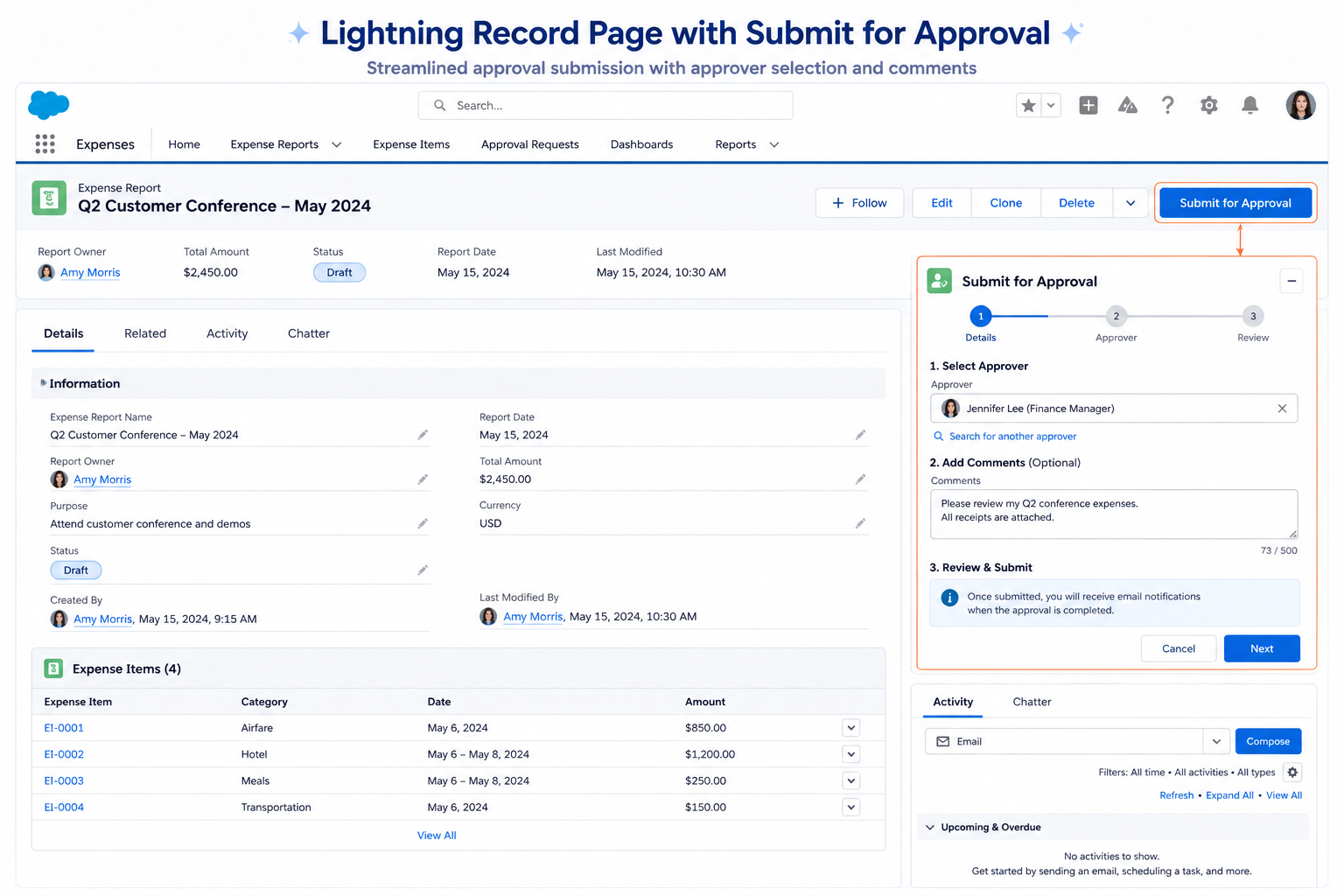
Step 1: User Clicks “Submit for Approval”
- Located on record page
- Visible, discoverable action
- Clear label
Step 2: Dialog Opens
Shows:
- Record being submitted
- Current status
- Approver information
- Comments field
Step 3: User Can:
- Review approver (auto-selected or choose)
- Add comments explaining request
- Confirm submission details
- Click Submit
Step 4: Confirmation
- Record submitted
- Approver assigned
- Status updated
- Confirmation message shown
Step 5: User Stays in Context
- Record page remains open
- Can continue working
- No page navigation
- No confusion
FLOW APPROVAL PROCESSES VS CLASSIC APPROVAL
Key Differences
Classic Approval Process
How It Works:
- Configured in Setup → Approval Processes
- Defines submission conditions
- Defines approval steps
- Uses approval history object
- Auto-routing logic
- Limited customization
Submission:
- Classic “Submit for Approval” button
- Limited configuration
- Standard experience
- One-size-fits-all
Customization:
- Limited to standard fields
- Can’t add custom logic
- Can’t branch conditionally
- Can’t integrate with other automation
Approval:
- Email notifications
- Approval history
- Standard reject/approve actions
Flow Approval Processes
How It Works:
- Configured as Flows
- Leverages Flow Builder
- Can include complex logic
- Can integrate with other automations
- Fully customizable
Submission:
- New Submit for Approval component
- Can be embedded in custom experience
- Can be configured with custom logic
- Flexible placement on record page
Customization:
- Build anything in Flow
- Conditional logic
- Multiple paths
- Integration with other systems
- Custom screens and logic
Approval:
- Flow handles approval logic
- Can send custom notifications
- Can trigger custom actions
- Can integrate with other automations
- Complete control
Comparison Table
| Aspect | Classic Approval | Flow Approval |
| Configuration Location | Setup → Approval Processes | Flow Builder |
| Submission UI | Standard button | Customizable component |
| Customization | Limited | Unlimited |
| Logic | Rules-based | Flow-based |
| Integration | Limited | Deep integration |
| Notification | Standard email | Custom |
| Approval Steps | Sequential | Any pattern |
| Flexibility | Low | High |
| Complexity | Simple | Can be complex |
When to Use Which
Use Classic Approval:
- Simple linear approvals
- Don’t need customization
- Quick to set up
- Straightforward routing
Use Flow Approval:
- Complex approval paths
- Need custom notifications
- Integration required
- Conditional logic needed
- Custom submission experience
BENEFITS FOR DIFFERENT PERSONAS
How This Helps Different Roles
For Record Submitters (Users)
Benefit 1: Clarity
- See who will approve
- Add context before submitting
- Understand process
- No confusion
Benefit 2: Efficiency
- One-click submission (no navigation)
- Stay in record context
- No back-and-forth
- Faster approvals
Benefit 3: Control
- Can select approver if auto-routing fails
- Can add comments explaining need
- Can confirm details before submitting
- Peace of mind
For Approvers
Benefit 1: Context
- Receive comments from submitter
- Understand business need
- Have all relevant information
- Make better decisions
Benefit 2: Efficiency
- Clear approval notifications
- Easy access to record
- Streamlined decision process
- Faster approvals
Benefit 3: Tracking
- Clear approval history
- Comments preserved
- Audit trail maintained
- Compliance support
For Administrators
Benefit 1: Flexibility
- Build custom approval workflows
- Conditional logic
- Integration with other processes
- No limitations of Classic Approval
Benefit 2: Customization
- Design experience exactly as needed
- Custom notifications
- Custom routing rules
- Custom integrations
Benefit 3: Maintenance
- Flows easier to maintain than Apex
- Visual builder makes logic clear
- Easier to modify and test
- Lower risk of errors
For Managers/Stakeholders
Benefit 1: Visibility
- Approval metrics visible
- Can track bottlenecks
- See approval status
- Monitor cycle times
Benefit 2: Efficiency
- Faster approvals = faster business
- Fewer delays due to lack of context
- Streamlined workflows
- Better business outcomes
IMPLEMENTATION STRATEGY
How to Adopt Flow Approval Processes
Migration Path: Classic to Flow Approval
Phase 1: Assess Current Approval Processes
For each Classic Approval Process:
– Document approval steps
– Document routing logic
– Document notifications
– Identify customizations needed
– Prioritize by business impact
Phase 2: Design Flow Approval Process
For each process:
– Design Flow structure
– Map routing logic
– Plan notifications
– Plan integrations
– Create in sandbox
Phase 3: Build and Test
– Create Flow in sandbox
– Build Submit for Approval component
– Add to record page layout
– Test submission
– Test approval
– Test rejection
Phase 4: Pilot
– Deploy to small user group
– Gather feedback
– Refine as needed
– Document process
– Train users
Phase 5: Full Rollout
– Deactivate Classic Approval (optional)
– Deploy Flow Approval to all users
– Monitor for issues
– Support users
– Iterate based on feedback
Quick Start: Create First Flow Approval
Step 1: Create Flow
- Create new Cloud Flow
- Type: “Approval” or “Record-Triggered”
- Add Screen: Collect submission data
- Add Decision: Determine approver
- Add Approval action: Submit for approval
- Add next steps based on approval decision
Step 2: Build Submit Component
- Add Submit for Approval component
- Configure to submit to Flow
- Add to record page
- Test submission
Step 3: Test
- Test as submitter: Submit record
- Test as approver: Receive notification, approve
- Verify record updates correctly
- Verify all notifications sent
Step 4: Deploy
- Activate Flow
- Add to production record layout
- Train users
- Monitor and support
FINAL THOUGHTS
The Submit for Approval component in Spring ’26 represents Salesforce’s commitment to making Flow Approval Processes a viable, practical alternative to Classic Approval. It’s not a replacement—it’s an evolution.
Classic Approval served its purpose. It’s simple, straightforward, works for straightforward approval workflows. But as organizations grow, approval workflows become more complex. Different amounts require different approvals. Different departments have different rules. Business logic becomes sophisticated.
Flow Approval Processes let organizations express that complexity. The Submit for Approval component makes that complexity accessible to end users through a clean, intuitive interface.
The pattern is clear: Salesforce is moving the platform toward Flow-based automation. We’ve seen it with Flows replacing Workflow Rules. We’re seeing it with Flows replacing Process Builder. And now, Flow Approval Processes are becoming the go-to approval mechanism.
For organizations still using Classic Approval, exploring Flow Approval Processes is worth considering. It’s not an urgent migration—Classic Approval still works. But as you refresh processes or encounter limitations in Classic Approval, Flow offers significantly more capability.
The user experience improvement is real: fewer clicks, better context, clearer process, faster approvals. The flexibility is powerful: conditional logic, integrations, custom notifications. The long-term value is substantial: future-proof, maintainable, scalable.