

INTRODUCTION
File management in Salesforce has traditionally been a System Admin responsibility. Only admins could delete files—a necessary restriction for protecting organizational data. But this created friction: business users couldn’t manage their own files, couldn’t clean up unnecessary content, couldn’t maintain file organization without admin involvement.
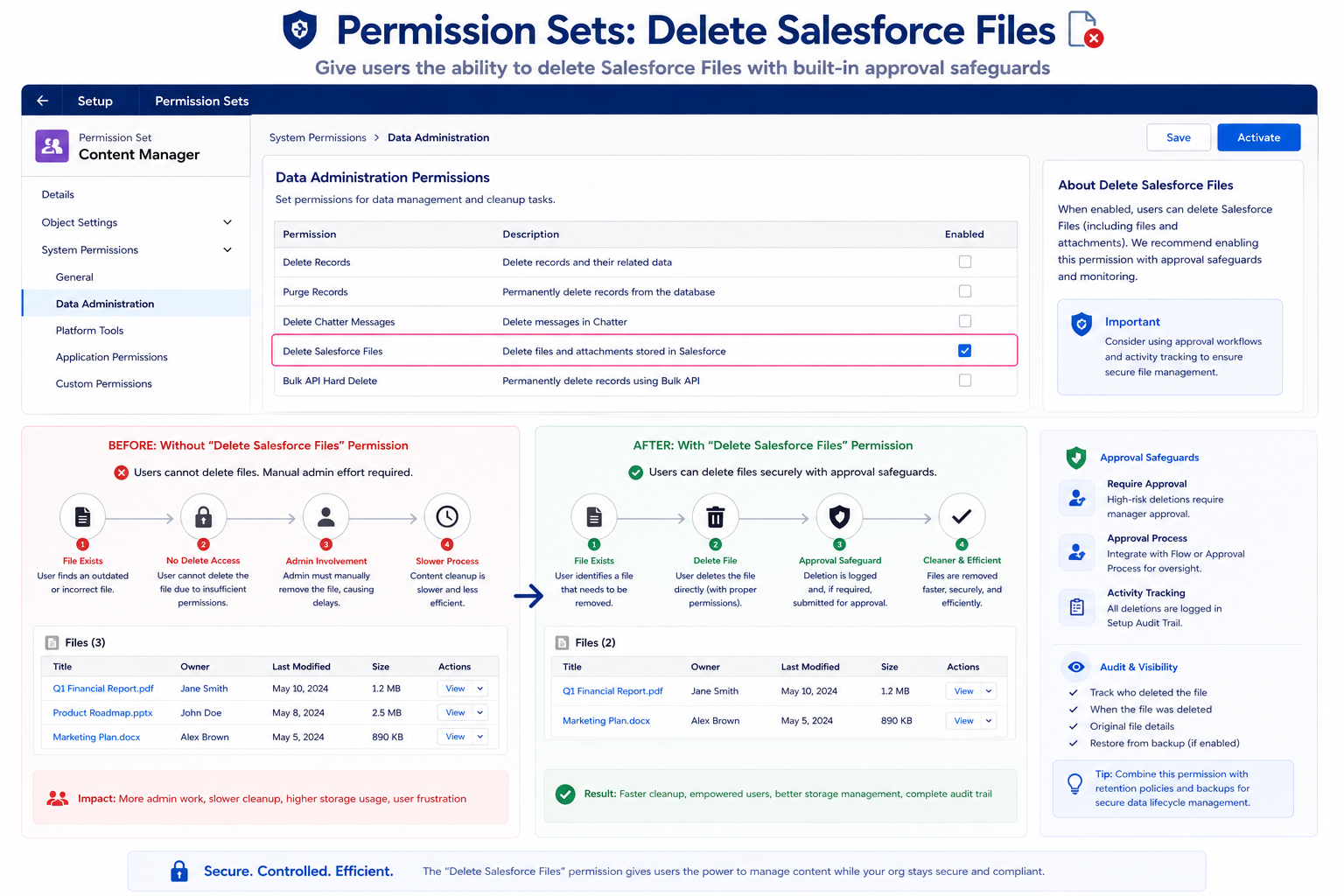
Spring ’26 introduces “Delete Salesforce Files” permission, allowing non-admins to delete files they don’t own. It’s a useful capability for delegated file management, content cleanup, and governance. But it’s also a capability that requires careful implementation to prevent accidental deletion of important content.
This post explores what the permission does, when it’s appropriate to use, risks to consider, and best practices for safe implementation.
FILE MANAGEMENT BEFORE THIS PERMISSION
Understanding the Constraint
How File Deletion Worked Before
Old Model:
- Only System Admins could delete files
- Users could only delete files they owned
- Content shared with team: stuck if original owner left
- File cleanup required admin intervention
User Experience:
Scenario: Need to delete old, unnecessary file
Before (System Admin Required):
- User: “Can you delete this old file?”
- Admin: “I’ll do it”
- Admin goes to Files
- Finds file
- Deletes file
- Reports back to user
Time: 10-15 minutes
Process: Multi-step
Friction: High
Real Scenarios Where This Created Problems
Scenario 1: Orphaned Files
User creates file
File shared with team
User leaves organization
File remains in org
Team can’t delete it (not their file)
Orphaned content accumulates
Admin cleanup required
Scenario 2: Storage Management
Org approaching storage limit
Marketing has old campaign files
Campaign complete
Files no longer needed
Can’t delete without admin
Storage cleanup delayed
Org hits limit
Scenario 3: Document Cleanup
Team needs to clean up shared drive
Multiple versions of documents
Outdated files should be removed
Can’t delete unless owner
Manual admin process
Time-consuming
Scenario 4: Accidental Sharing
User accidentally shares file
Sensitive content shared
Realizes mistake
Can’t delete (admin only)
Sensitive info remains accessible
User frustrated
THE NEW DELETE SALESFORCE FILES PERMISSION
What Spring ’26 Enables
Permission Overview
What It Does:
Allows users with permission to delete Salesforce Files without being System Admin.
Key Characteristics:
- Non-admins can delete files
- Can delete files they don’t own
- Permission can be assigned at permission set level
- Granular control possible
- Different from owner-only deletion
Who Can Delete Under This Permission
Before Permission:
- System Admins: Can delete any file
- Regular users: Can only delete their own files
After Permission:
- Users with permission: Can delete any file
- Users without permission: Can only delete their own files
- Permission-based instead of role-based
Use Cases This Enables
Use Case 1: File Manager Role
Create permission set: “File Manager”
Grant: Delete Salesforce Files
Assign to: Designated cleanup people
Result: Team can manage organizational files
Without: System Admin access
Benefit: Delegated responsibility
Use Case 2: Storage Governance
As storage approaches limit:
File managers identified
Given Delete Salesforce Files permission
Review old/unnecessary files
Delete to reduce storage
Prevent storage overages
Without: Admin intervention
Use Case 3: Content Governance
Content governance committee identified
Given Delete Salesforce Files permission
Regular review of shared content
Remove outdated materials
Maintain content freshness
Without: Admin review
Use Case 4: Team Organization
Team leads given permission
Can manage team’s file repository
Delete outdated content
Organize shared materials
Maintain team productivity
Without: Central admin management
IMPLEMENTATION BEST PRACTICES
Safe Delegation of File Deletion
Best Practice 1: Selective Assignment
Who Should Get Permission:
- Content governance committee members
- File managers (trusted, trained individuals)
- Project managers (within their projects)
- Team leads (within their teams)
Who Should NOT Get Permission:
- All users (too broad)
- Junior staff (lack judgment)
- Contractors/temporary staff (not permanent)
- Users with performance issues
Implementation:
Create permission set: “Content Manager”
Grant: Delete Salesforce Files permission
Assign to: Named individuals only
Not: Groups or roles (too broad)
Review: Quarterly
Remove: When role changes
Best Practice 2: Clear Deletion Policies
Document:
Salesforce File Deletion Policy
Purpose: Enable delegated file management
Scope: Users with Delete Salesforce Files permission
What can be deleted:
– Old versions of documents
– Outdated materials
– Superseded content
– Duplicate files
What CANNOT be deleted:
– Current contract documents
– Compliance-required files
– Active project materials
– Owner’s content (without consent)
Retention periods:
– Contracts: 7 years minimum
– Financial: 5 years minimum
– HR: 3 years minimum
– Other: As policy dictates
Approval required:
– Any file older than [X] users depend on
– Shared content (notify stakeholders first)
– Critical operational files
Best Practice 3: Clear Naming Conventions
File Names Should Indicate:
- Content type (Contract, Invoice, Report, etc.)
- Date (YYYY-MM-DD format)
- Version if applicable
- Status (Draft, Final, Archived)
Examples:
Good names (clear intent):
– Contract_ServiceAgreement_2025-01-15_Final.pdf
– Report_Q4Sales_2024-12-31_v2.xlsx
– Presentation_ProductLaunch_2025-02-28_Draft.pptx
Bad names (unclear):
– Document.pdf
– Final_Final_v3.xlsx
– Report.pptx
Benefit:
Clear names make deletion decisions easier. Less risk of accidental deletion.
Best Practice 4: Confirmation and Audit Trail
Deletion Process:
- User initiates deletion
- Confirmation dialog: “Are you sure?”
- Shows: File name, size, shared with how many
- Requires: Explicit confirmation
- Deletion occurs
- Audit trail: User, file, timestamp, reason (if captured)
System Behavior:
- Soft delete (if possible): Keep audit trail, allow recovery
- Hard delete: Permanent deletion
- Audit log: All deletions logged
- Notification: Stakeholders notified if appropriate
Best Practice 5: Regular Audits
Monthly Review:
– Review deletion audit logs
– Identify patterns
– Check for abuse
– Verify appropriate deletions
– Address any concerns
Quarterly Review:
– Who has permission
– Is it still needed
– Any performance issues
– Remove if not needed
– Update policies if needed
Annually:
– Comprehensive policy review
– Verify compliance
– Training refresher
– Update procedures
Best Practice 6: Training and Communication
User Training Should Cover:
- When deletion is appropriate
- Retention requirements
- Compliance considerations
- Confirmation procedures
- Consequences of abuse
- How to handle uncertainty
Ongoing Communication:
– Share deletion policies
– Highlight important files not to delete
– Celebrate good file management
– Address issues promptly
– Update as policies change
ALTERNATIVE APPROACHES
When Approval Might Be Better Than Deletion
The Approval Alternative
Instead of Direct Deletion:
Create approval workflow for file deletion.
Process:
File manager initiates deletion request
→ Approval queue
→ Content governance committee reviews
→ Approves or rejects
→ If approved: File deleted
→ Audit trail maintained
Benefits:
- Extra safeguard
- Committee oversight
- Clear documentation
- Lower accidental deletion risk
- Compliance-friendly
Drawbacks:
- Slower process
- Additional overhead
- Might be overkill for routine deletions
When To Use:
- Critical files
- Compliance-sensitive content
- High-value content
- Conservative organizations
The Retention Label Alternative
Instead of Permissions:
Use retention labels and policies.
Process:
Classify files by retention requirement:
– “Retain 7 Years” (Contracts)
– “Retain 5 Years” (Financial)
– “Retain 2 Years” (Marketing)
– “Can Delete Anytime” (Working drafts)
System enforces retention
Users can delete if label allows
No manual decisions needed
Automatic compliance
Benefits:
- Automatic enforcement
- Compliance guaranteed
- No user judgment required
- Scalable
Drawbacks:
- Requires setup
- Less flexible for edge cases
FINAL THOUGHTS
The “Delete Salesforce Files” permission is a useful capability that solves real problems: content cleanup, storage management, team autonomy, delegated governance. But it’s also a capability that requires careful implementation to prevent unintended consequences.
The key principle: delegate responsibility, but maintain oversight. Grant permission to trusted individuals, but monitor use. Enable autonomy, but enforce compliance.
Done well, this permission reduces admin burden and improves team experience. Done carelessly, it creates accidental data loss risks and compliance issues.
The difference is implementation discipline: selective assignment, clear policies, proper training, regular monitoring, and audit trails. With these safeguards in place, delegated file deletion is a clean solution to a real problem.
For Salesforce administrators, this is a permission worth understanding and using judiciously. It’s not something to assign broadly, but it’s valuable for specific roles and responsibilities. When you find the right use case and implement it properly, the productivity gains are real.