

INTRODUCTION
Recently, I explored Slack capabilities within Salesforce by configuring Slack to enable automated notifications based on record changes. What started as a straightforward configuration exercise turned into a valuable deep-dive into the power of declarative development on the Salesforce platform.
The goal was simple: when something important changes in Salesforce, the right people should know about it immediately — directly in Slack, without manual intervention, and without writing a single line of custom code.
This post walks through the full implementation, covering every configuration step, the key areas explored, and the lessons learned along the way.
THE CHALLENGE
Why Real-Time Communication Between Salesforce and Slack Matters
Modern teams live in Slack. Sales teams track deals there. Support teams monitor cases there. Operations teams coordinate there. Yet Salesforce — where all the critical business data lives — traditionally required users to log in, navigate records, and manually check for updates.
This disconnect creates real problems:
Common Pain Points:
- Important record changes go unnoticed until someone manually checks Salesforce
- Teams rely on manual status update messages in Slack, which are inconsistent and error-prone
- Critical events like high-priority case escalations or deal stage changes are missed
- Collaboration is delayed because the right people are not notified at the right time
- Admins lack a code-free way to surface Salesforce data in team communication channels
The Opportunity: Salesforce and Slack are both owned by the same company — and the native integration between them is far more capable than most teams realize. The entire implementation explored in this blog uses standard platform features with no custom Apex and no external middleware.
THE SOLUTION OVERVIEW
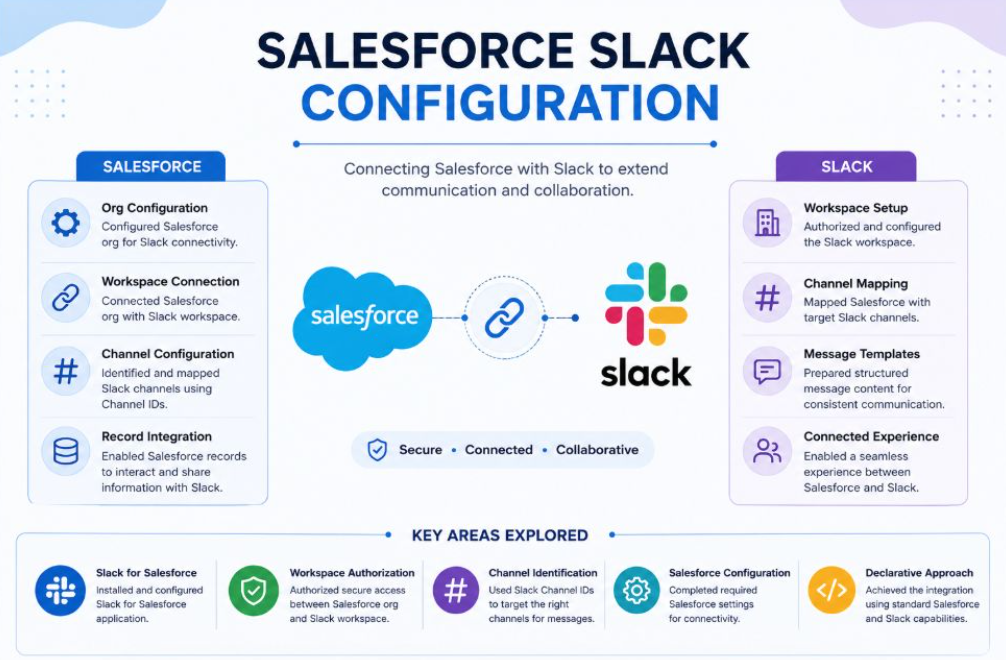
Connecting Salesforce and Slack — Secure, Connected, Collaborative
The implementation connects Salesforce and Slack through a layered configuration approach, covering both the Salesforce side and the Slack side of the integration.
Salesforce Side — Four Core Configuration Steps:
- Org Configuration — Configured the Salesforce org for Slack connectivity, enabling the platform to communicate securely with the Slack workspace
- Workspace Connection — Connected the Salesforce org with the target Slack workspace, establishing the authenticated link between both platforms
- Channel Configuration — Identified and mapped Slack channels using Channel IDs, ensuring messages are routed to the correct teams and conversations
- Record Integration — Enabled Salesforce records to interact with and share information directly with Slack, making record-specific data available in channel messages
Slack Side — Four Core Configuration Steps:
- Workspace Setup — Authorized and configured the Slack workspace to accept connections from the Salesforce org
- Channel Mapping — Mapped Salesforce with the target Slack channels to define where different types of notifications are delivered
- Message Templates — Prepared structured message content for consistent and readable communication in Slack channels
- Connected Experience — Enabled a seamless experience between Salesforce and Slack, allowing bidirectional awareness across both platforms
IMPLEMENTATION DETAILS
Step-by-Step — How the Configuration Was Built
Step 1: Installing and Configuring Slack for Salesforce
The first step was installing the Slack for Salesforce application. This managed package provides the foundation for the entire integration, adding the necessary components, permissions, and configuration options to the Salesforce org.
Key actions during this step:
- Install the Slack for Salesforce app from AppExchange
- Assign the Slack User permission set to relevant users
- Complete the initial app configuration walkthrough inside Salesforce Setup
Step 2: Workspace Authorization
With the app installed, the next step was authorizing secure access between the Salesforce org and the Slack workspace. This is the authentication layer that allows Salesforce to send messages to Slack on behalf of the connected integration.
Key actions during this step:
- Navigate to Slack Setup inside Salesforce
- Authorize the Salesforce org with the target Slack workspace
- Confirm the connection status shows as active and authenticated
Step 3: Channel Identification Using Slack Channel IDs
Rather than referencing channels by name — which can change — the implementation used Slack Channel IDs to precisely target the right channels for message delivery. Channel IDs are permanent identifiers that remain stable even if channel names are updated.
Key actions during this step:
- Identify the target Slack channels for notifications
- Retrieve Channel IDs from Slack channel settings
- Store Channel IDs for use in Flow configuration
Step 4: Salesforce Configuration for Connectivity
On the Salesforce side, several configuration settings were completed to enable reliable message delivery. This included confirming org-wide settings, connected app configurations, and remote site settings required for outbound communication to Slack.
Key actions during this step:
- Verify connected app settings for Slack
- Confirm remote site settings allow outbound calls to Slack endpoints
- Test the connection from Salesforce to confirm successful communication
Step 5: Building Flow-Based Automation
With the infrastructure in place, the automation itself was built entirely using Salesforce Flow — no Apex required. Record-triggered Flows monitor changes to specific fields or record conditions and send structured messages to the configured Slack channels when those conditions are met.
Key actions during this step:
- Create a Record-Triggered Flow on the target object
- Define the trigger conditions — for example, when Case Status changes to Escalated
- Add a Send Message to Slack action using the target Channel ID
- Configure the message content using record field references for dynamic, record-specific messaging
- Activate the Flow and test end-to-end message delivery
KEY AREAS EXPLORED
Five Capabilities at the Core of the Implementation
- Slack for Salesforce The Slack for Salesforce managed app provides the integration layer between both platforms. Installing and configuring it correctly is the prerequisite for everything else in this implementation. It handles authentication, permissions, and the Salesforce-side components needed for Slack actions in Flow.
- Workspace Authorization Authorizing the workspace establishes the secure, authenticated connection between the Salesforce org and the Slack workspace. This step ensures messages sent by Salesforce arrive in Slack as the authorized integration user, not as an anonymous system call.
- Channel Identification Using Slack Channel IDs instead of channel names is a small but important architectural decision. It ensures messages always reach the intended channel regardless of renaming or restructuring on the Slack side. Every channel in Slack has a unique ID that can be retrieved from channel settings.
- Salesforce Configuration The Salesforce org requires specific configuration to enable outbound communication to Slack. This includes connected app settings, remote site permissions, and user-level access controls. Getting these right before building automation prevents connectivity issues during testing.
- Declarative Approach The entire integration was achieved using standard Salesforce and Slack capabilities — no custom Apex, no middleware, no external APIs. Flow’s native Send to Slack action handles message delivery, making this a fully admin-configurable solution that does not require developer involvement for future changes.
REAL-WORLD IMPACT
What This Integration Enables for Teams
Scenario 1: Case Escalation Notification
Without Slack Integration:
- Case escalated in Salesforce
- Support manager must log into Salesforce to check case queue
- Escalation may sit unnoticed for hours
- Response time suffers
With Slack Integration:
- Case status changes to Escalated in Salesforce
- Flow triggers immediately and sends a message to the #support-escalations Slack channel
- Support manager sees the notification in real time
- Response begins within minutes
Scenario 2: Opportunity Stage Change Alert
Without Slack Integration:
- Deal moves to Proposal stage in Salesforce
- Sales manager learns about it during the next pipeline review meeting
- Follow-up actions are delayed
With Slack Integration:
- Opportunity Stage changes to Proposal in Salesforce
- Flow sends an automated message to the #sales-pipeline channel with deal name, amount, and owner
- Sales manager is notified immediately and can take action
Team Impact:
- Sales Teams: Real-time deal updates without leaving Slack
- Support Teams: Immediate escalation alerts routed to the right channel
- Operations Teams: Automated status updates replacing manual messages
- Admins: Full control over notification logic using Flow — no developer required
KEY LEARNING
What This Implementation Taught Me
Learning 1: Standard Capabilities Are More Powerful Than Expected The entire integration was built without custom code. Salesforce Flow’s native Slack action handles message delivery completely. This reinforces that the platform’s declarative capabilities have matured significantly — code is not always the answer.
Learning 2: Channel IDs Are the Right Way to Target Channels Using Channel IDs instead of channel names prevents fragile integrations that break when channels are renamed or reorganized. It is a small decision during setup that saves headaches in production.
Learning 3: Authorization Needs Careful Attention The workspace authorization step is where most configuration issues arise. Taking time to understand the connected app settings, user permissions, and Slack app authorizations before building automation prevents troubleshooting problems later.
Learning 4: Message Templates Make a Real Difference Structured, consistent message content makes Slack notifications genuinely useful. Messages that include key record fields — case number, priority, owner, status — give the recipient immediate context without having to open Salesforce.
Learning 5: Declarative Development Scales Once the infrastructure is in place, adding new notification types is fast. A new Flow for a new object or a new trigger condition can be built and deployed in minutes. The investment in initial configuration pays off every time a new use case is added.
BEST PRACTICES
Design Principles for Salesforce Slack Integrations
Best Practice 1: Plan Your Channel Structure First Before building any automation, map out which Slack channels should receive which types of Salesforce notifications. A clear channel structure prevents notification noise and ensures messages reach the right audience.
Best Practice 2: Use Channel IDs, Not Channel Names Always use Slack Channel IDs in your Flow configuration. Channel names can change; Channel IDs cannot. This one habit prevents broken integrations after routine Slack workspace reorganizations.
Best Practice 3: Keep Messages Concise and Contextual Design message templates that include only the most relevant fields. A message with record name, key status field, assigned user, and a direct link back to the Salesforce record gives recipients everything they need at a glance.
Best Practice 4: Test in Sandbox First Always build and validate your Slack integration in a sandbox org before deploying to production. Test every trigger condition, message format, and channel routing scenario before go-live.
Best Practice 5: Control Notification Volume Too many notifications create noise and cause teams to ignore them. Be selective about which record changes trigger Slack messages. Focus on high-value events — escalations, stage changes, threshold breaches — rather than every field update.
Best Practice 6: Document Your Channel ID Mapping Maintain a simple reference document that maps each Salesforce Flow to its target Slack channel, including the Channel ID used. This documentation makes future maintenance and troubleshooting significantly faster.
KEY INSIGHT
The Power of the Declarative Approach
The most valuable takeaway from this implementation is not the specific configuration steps — it is the broader principle they demonstrate.
Salesforce and Slack together give admins and developers the ability to build real-time, automated communication workflows without custom code, without middleware, and without external integrations. The platform already has what you need.
What seems like a developer task — automated cross-platform notifications triggered by data changes — is fully achievable by an admin who understands Flow and is willing to explore the Slack for Salesforce configuration.
This is what declarative development looks like at its best: secure, connected, and collaborative — built entirely from standard capabilities.
Final Thought
Configuring Salesforce Slack integration provided valuable hands-on experience with Slack for Salesforce, Flow automation, and channel-based messaging. More importantly, it reinforced a principle that every Salesforce professional should internalize: before reaching for code, explore what the platform already provides.
The combination of Salesforce Flow and Slack’s native integration capabilities creates a powerful, flexible, and entirely admin-manageable notification system. Teams stay informed in real time. Record changes surface in the right Slack channels automatically. And the entire solution evolves without developer involvement every time requirements change.
Secure. Connected. Collaborative. That is Salesforce Slack integration done right.