

INTRODUCTION
Salesforce Spring ’26 continues to deliver meaningful improvements to Flow Builder — and if you work with Record-Triggered Flows, two specific updates deserve your attention.
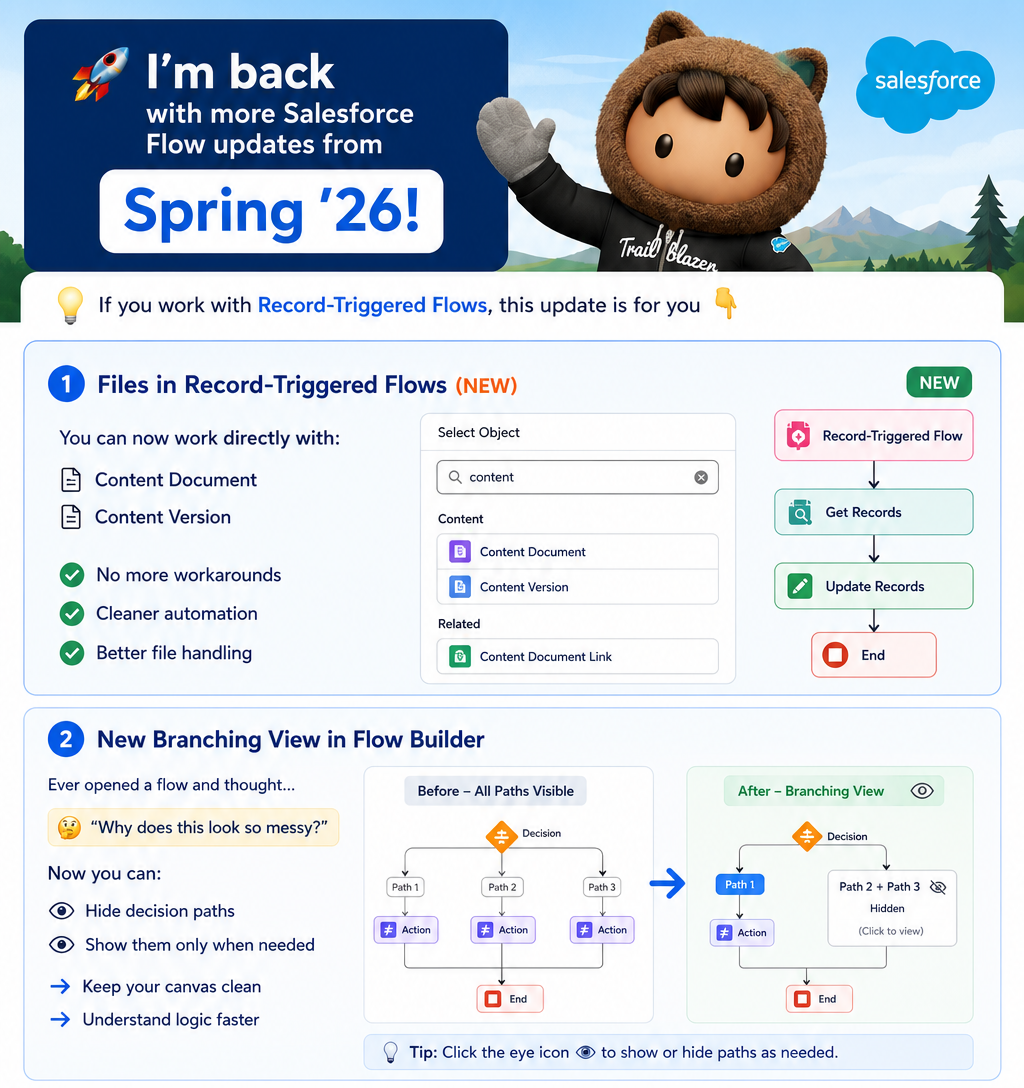
The first solves a long-standing limitation: you can now work directly with files — Content Document and Content Version — inside Record-Triggered Flows. No more workarounds. No more custom Apex just to interact with file records in an automated flow.
The second improves how you navigate and understand complex flows: a new Branching View in Flow Builder lets you hide and show decision paths on demand, keeping your canvas clean and your logic readable even as flows grow in complexity.
This blog covers both updates — what they are, why they matter, how they work, and how to start using them in your org today.
THE CHALLENGE
Two Problems That Spring ’26 Directly Addresses
Problem 1: File Handling in Record-Triggered Flows Was Unnecessarily Hard
Files in Salesforce — stored as Content Document and Content Version records — are some of the most commonly needed data in business automation. When a contract is uploaded, send a notification. When a document is attached to a case, trigger a review process. When a file version is created, update a related record.
These are reasonable, common automation requirements. But before Spring ’26, Record-Triggered Flows could not natively interact with Content Document or Content Version objects as trigger sources or in Get Records elements the way other standard objects could be used.
The result was a familiar pattern of workarounds:
- Writing Apex triggers to handle file-related automation and calling flows from code
- Using Platform Events as an intermediary layer between file creation and flow execution
- Building complex multi-flow architectures just to bridge the gap between file events and business logic
- Accepting that some file-related automation simply required developer involvement rather than admin configuration
Each workaround added complexity, reduced maintainability, and moved automation logic away from the declarative Flow Builder environment where admins could manage it independently.
Problem 2: Complex Flows Were Visually Unmanageable
As Record-Triggered Flows grow to handle real business logic — multiple decision branches, nested conditions, different paths for different record states — the Flow Builder canvas becomes difficult to navigate. Every decision element expands into multiple visible paths simultaneously, even when you are only interested in understanding one path at a time.
Opening a mature flow built by someone else — or returning to your own flow after weeks away — often means spending significant time just orienting yourself to the canvas before you can begin understanding or modifying the logic.
For teams managing large numbers of flows, this visual complexity is a genuine productivity cost that accumulates across every review, modification, and debugging session.
UPDATE ONE — FILES IN RECORD-TRIGGERED FLOWS
Content Document and Content Version — Now Native in Record-Triggered Flows
Spring ’26 introduces native support for Content Document and Content Version objects in Record-Triggered Flows. This means you can now trigger flows directly from file-related events and work with file records using standard Flow elements — without custom Apex, without Platform Events as intermediaries, and without workarounds.
What This Enables:
- Trigger a Record-Triggered Flow when a Content Document is created — a new file is uploaded
- Trigger a Record-Triggered Flow when a Content Version is created — a new version of an existing file is added
- Use Get Records to retrieve Content Document or Content Version data within flows triggered by other objects
- Use Create Records, Update Records, and other DML elements with file-related objects in flows
- Reference file metadata — file name, extension, size, owner, linked entity — in flow logic and automation
Why This Is Significant:
Before this update, the gap between file events and Flow automation required a developer to bridge it. Now it does not. An admin can build a complete file-related automation workflow entirely in Flow Builder:
- A contract file is uploaded to an Opportunity — trigger a flow that notifies the legal team and creates a review task
- A new version of a policy document is added — trigger a flow that updates the document status and sends an approval request
- A file is attached to a Case — trigger a flow that categorises the case based on the file type and routes it to the appropriate queue
All of this is now configurable in Flow Builder without a single line of Apex.
How to Use It:
Step 1: Create a New Record-Triggered Flow
– In Flow Builder, create a new flow
– Select Record-Triggered Flow as the flow type
– In the object selection, search for and select Content Document
or Content Version as the triggering object
Step 2: Configure the Trigger
– Select the trigger event:
A Record is Created — fires when a new file is uploaded
A Record is Updated — fires when file metadata changes
A Record is Created or Updated — fires on either event
– Configure entry conditions if needed — filter by file type,
owner, or other Content Document fields
Step 3: Build Your Automation Logic
– Use Get Records to retrieve related records — the
LinkedEntityId on ContentDocumentLink connects the file
to the record it is attached to
– Use Decision elements to branch based on file properties
– Use Create Records, Update Records, or Send Email
elements to take action based on the file event
Step 4: Activate and Test
– Save and activate the flow
– Upload a test file to trigger the flow
– Review flow interview history to confirm correct execution
Important Consideration — ContentDocumentLink:
Content Documents are linked to Salesforce records through the ContentDocumentLink object. When your flow triggers on Content Document creation, use a Get Records element to query ContentDocumentLink records where ContentDocumentId matches the triggering record’s Id. This retrieves the LinkedEntityId — the Id of the record the file is attached to — which you can then use to query or update the related record.
Get Records: ContentDocumentLink
Filter: ContentDocumentId Equals {!$Record.Id}
Store: First record only
Variable: LinkedRecordId = {!ContentDocumentLink.LinkedEntityId}
Get Records: Case (or Opportunity, Account, etc.)
Filter: Id Equals {!LinkedRecordId}
UPDATE TWO — NEW BRANCHING VIEW IN FLOW BUILDER
Hide and Show Decision Paths — Keep Your Canvas Clean and Your Logic Clear
The second Spring ’26 update addresses the visual complexity of complex flows with a new Branching View capability in Flow Builder. You can now hide individual decision paths — collapsing them from view — and show them only when you need to see or work with them.
What This Enables:
- Collapse decision branches that are not relevant to your current focus
- Expand specific paths when you need to review or modify the logic within them
- Navigate a complex flow canvas without all branches visible simultaneously
- Understand the overall flow structure at a high level before drilling into specific paths
- Share or review flows with stakeholders by showing only the relevant branch for the discussion
Why This Matters for Flow Maintainability:
A Record-Triggered Flow handling a complex business process might have five, ten, or more decision branches — each representing a different path through the business logic. With all branches visible simultaneously, the canvas becomes a web of crossing connectors and overlapping elements that requires significant effort just to navigate.
The new Branching View does not change the logic. It changes the view of the logic. You can collapse the four branches you are not working on and focus entirely on the one you are. When you are done, expand them all to see the complete picture.
This is a significant quality-of-life improvement for anyone who builds, reviews, or maintains flows of any real complexity.
How to Use It:
Step 1: Open an Existing Flow With Decision Elements
– Open any Record-Triggered Flow that contains
one or more Decision elements in Flow Builder
Step 2: Locate the Branching View Controls
– On Decision elements in the canvas, look for the
collapse/expand controls on individual outcome paths
– Each branch path can be independently hidden or shown
Step 3: Collapse Paths You Do Not Need
– Click the hide control on branches you want to collapse
– The path folds away, cleaning up that section of the canvas
– The Decision element remains visible — only the branch
path is hidden, not the logic within it
Step 4: Expand Paths When Needed
– Click the show control to expand any hidden branch
– The full path expands back into view
– All elements within the branch are accessible again
Step 5: Use Selectively During Review and Modification
– When reviewing a specific scenario, hide all branches
except the one relevant to that scenario
– When doing a full logic review, show all branches
– When presenting to stakeholders, show only the paths
relevant to the discussion
Practical Applications:
- Debugging a specific path — hide all other branches to focus on the one producing unexpected behavior
- Onboarding a new team member — walk through one branch at a time with all others collapsed
- Documenting a flow — take screenshots of individual branches with others collapsed for clearer documentation
- Reviewing changes — show only the modified branch to reviewers who need to approve the change
- Planning modifications — collapse completed sections and focus on the section being worked on
COMBINED IMPACT
What These Two Updates Mean Together for Flow Development
Used together, these two Spring ’26 updates represent a meaningful step forward in what Record-Triggered Flows can handle and how effectively developers and admins can manage that complexity.
Before Spring ’26:
- File-related automation required Apex triggers or Platform Event workarounds
- Complex flows with many branches were visually unmanageable
- Teams needed developer involvement for common file automation use cases
- Flow reviews and modifications in complex flows were time-consuming orientation exercises
After Spring ’26:
- File attachment events can trigger flows natively — no Apex required
- Complex flows can be navigated branch by branch — canvas stays manageable
- Admins can own complete file automation workflows independently
- Flow reviews focus on logic rather than canvas navigation
The Broader Pattern:
Both updates reflect the same direction that Salesforce has been moving Flow Builder for several releases — expanding the scope of what declarative automation can handle and improving the tools available for managing automation as it grows in complexity. Less reliance on code for common automation needs. Better tooling for the automation that already exists.
REAL-WORLD USE CASES
How These Updates Apply to Common Business Scenarios
Use Case 1: Contract Management Automation
A legal team requires that when a contract file is uploaded to an Opportunity, a review task is created for the legal team, the Opportunity stage is updated to Contract Review, and a notification is sent to the account owner.
Before Spring ’26: Apex trigger on ContentDocument creation calls a flow or directly implements the logic.
After Spring ’26: Record-Triggered Flow on Content Document creation handles the entire process declaratively — retrieve the linked Opportunity through ContentDocumentLink, update the stage, create the task, send the notification. All in Flow Builder. No Apex required.
Use Case 2: Case File Categorisation
A support team wants to automatically categorise cases based on the type of file attached. PDF attachments trigger a document review sub-process. Image attachments trigger a visual inspection workflow. Other file types trigger a standard review.
After Spring ’26: Record-Triggered Flow on Content Version creation retrieves the file extension from the ContentVersion record, uses a Decision element to branch based on file type, and triggers the appropriate downstream process for each branch. The Branching View keeps each file-type path independently manageable during development and review.
Use Case 3: Policy Document Version Control
A compliance team requires that when a new version of a policy document is uploaded, the previous version is flagged as superseded and a compliance review task is created with the document owner as the assignee.
After Spring ’26: Record-Triggered Flow on Content Version creation retrieves previous versions of the same Content Document, updates their status fields, and creates the compliance review task. Fully declarative. Admin-manageable without developer involvement.
Use Case 4: Complex Approval Flow Navigation
A flow managing a multi-stage approval process has seven decision branches — each representing a different approval outcome combination. The flow was built over several months and is now difficult to navigate for maintenance.
After Spring ’26: The Branching View allows the admin maintaining the flow to collapse the six branches not currently being reviewed and focus on the one relevant to the current change. Reviews that previously took 30 minutes to orient to the canvas now start immediately on the relevant logic.
KEY LEARNING
What These Updates Teach Us About Flow Builder’s Direction
Learning 1: The Gap Between Declarative and Code Is Narrowing Every release that adds a new object type or trigger source to Record-Triggered Flows narrows the gap between what admins can build declaratively and what requires developer involvement. Content Document and Content Version support is a meaningful addition to that narrowing. The question to ask before writing Apex is increasingly — can Flow handle this now?
Learning 2: Visual Complexity Is a Real Maintainability Problem The Branching View update acknowledges something that anyone who manages flows knows: visual complexity in Flow Builder is a genuine obstacle to understanding and maintaining automation. Features that reduce that complexity — without changing the underlying logic — have real productivity value. This is good tooling thinking.
Learning 3: File Automation Is More Common Than It Might Appear Many organisations have file-related automation requirements that they have either implemented with Apex or abandoned as too complex for declarative tools. Native Content Document and Content Version support in Record-Triggered Flows makes it worth revisiting those requirements and evaluating whether they can now be implemented declaratively.
Learning 4: ContentDocumentLink Is the Key to File-Related Context When working with file-related flows, ContentDocumentLink is the junction object that connects a file to the record it is attached to. Understanding this relationship — and how to query it within a flow — is the key technical knowledge needed to build effective file automation. Getting comfortable with this pattern unlocks the full value of the new capability.
Learning 5: Good Tooling Compounds Over Time The Branching View improvement seems modest — hide and show branches. But across a team managing dozens of flows, reviewed and modified regularly, the accumulated time saved and confusion avoided compounds into significant productivity improvement. Small tooling improvements that reduce daily friction have outsized long-term value.
BEST PRACTICES
Getting the Most From These Spring ’26 Flow Updates
Best Practice 1: Audit Existing File Automation for Migration Opportunities Review your org’s current file-related Apex triggers and Platform Event solutions. Identify which ones could now be replaced with declarative Record-Triggered Flows on Content Document or Content Version. Migration to declarative automation reduces technical debt and makes the automation admin-manageable.
Best Practice 2: Always Query ContentDocumentLink for Record Context When building flows triggered by Content Document or Content Version events, the first Get Records element after the trigger should almost always query ContentDocumentLink to retrieve the LinkedEntityId. This gives you the Id of the record the file is attached to, which is the foundation for all subsequent flow logic.
Best Practice 3: Use Entry Conditions to Filter Relevant File Events Not every file upload in your org needs to trigger every file-related flow. Use entry conditions on your Content Document or Content Version triggers to filter by file extension, owner, or other relevant criteria. Targeted triggers reduce unnecessary flow executions and improve org performance.
Best Practice 4: Adopt Branching View as Your Default Navigation Mode When opening any complex flow for review or modification, immediately collapse all branches except the one relevant to your current task. Make this a habit rather than an occasional tool. The cognitive benefit of focused navigation compounds across every flow review session.
Best Practice 5: Use Collapsed Branches for Documentation Screenshots When documenting flows for handover, compliance, or training purposes, use the Branching View to capture screenshots of individual branches with others collapsed. This produces clearer, more focused documentation than screenshots of the full canvas with all branches simultaneously visible.
Best Practice 6: Test File Flows With Multiple File Types and Sizes When testing Record-Triggered Flows built on Content Document or Content Version objects, test with multiple file types and sizes to ensure your entry conditions and logic handle the full range of files that will trigger the flow in production. Edge cases around large files, unusual extensions, or files uploaded through different channels are worth validating explicitly.
KEY INSIGHT
Declarative First — Code When Necessary
The addition of Content Document and Content Version support to Record-Triggered Flows reinforces a principle that should guide every Salesforce automation decision: build declaratively first, and reach for code only when the platform’s declarative capabilities genuinely cannot meet the requirement.
For file-related automation, that principle now applies to a much wider range of use cases than it did before Spring ’26. The workarounds that were previously necessary are now optional detours around a direct path.
The Branching View complements this by making it more practical to build and maintain the complex declarative flows that result from taking the declarative-first approach seriously. Better automation capability and better automation tooling, delivered together.
Final Thought
Two updates. Both are meaningful. Both are immediately usable in your org.
If you have file-related automation currently handled by Apex triggers or workarounds, Spring ’26 is the right time to evaluate whether that logic can move to a declarative Record-Triggered Flow. The platform now supports it natively.
If you manage complex flows that have become difficult to navigate, the Branching View is waiting for you in Flow Builder right now. Open your most complex flow, collapse the branches you are not working on, and experience the difference immediately.
Go try these features in your org. The improvement in both capability and clarity is worth the time it takes to explore them.