

INTRODUCTION
Field-level access control in Salesforce is essential for data security and compliance, but managing it has always been tedious. To check which profiles and permission sets have access to a specific field, admins had to navigate between multiple screens: open the field, check each profile individually, check permission sets separately, manually compile the information.
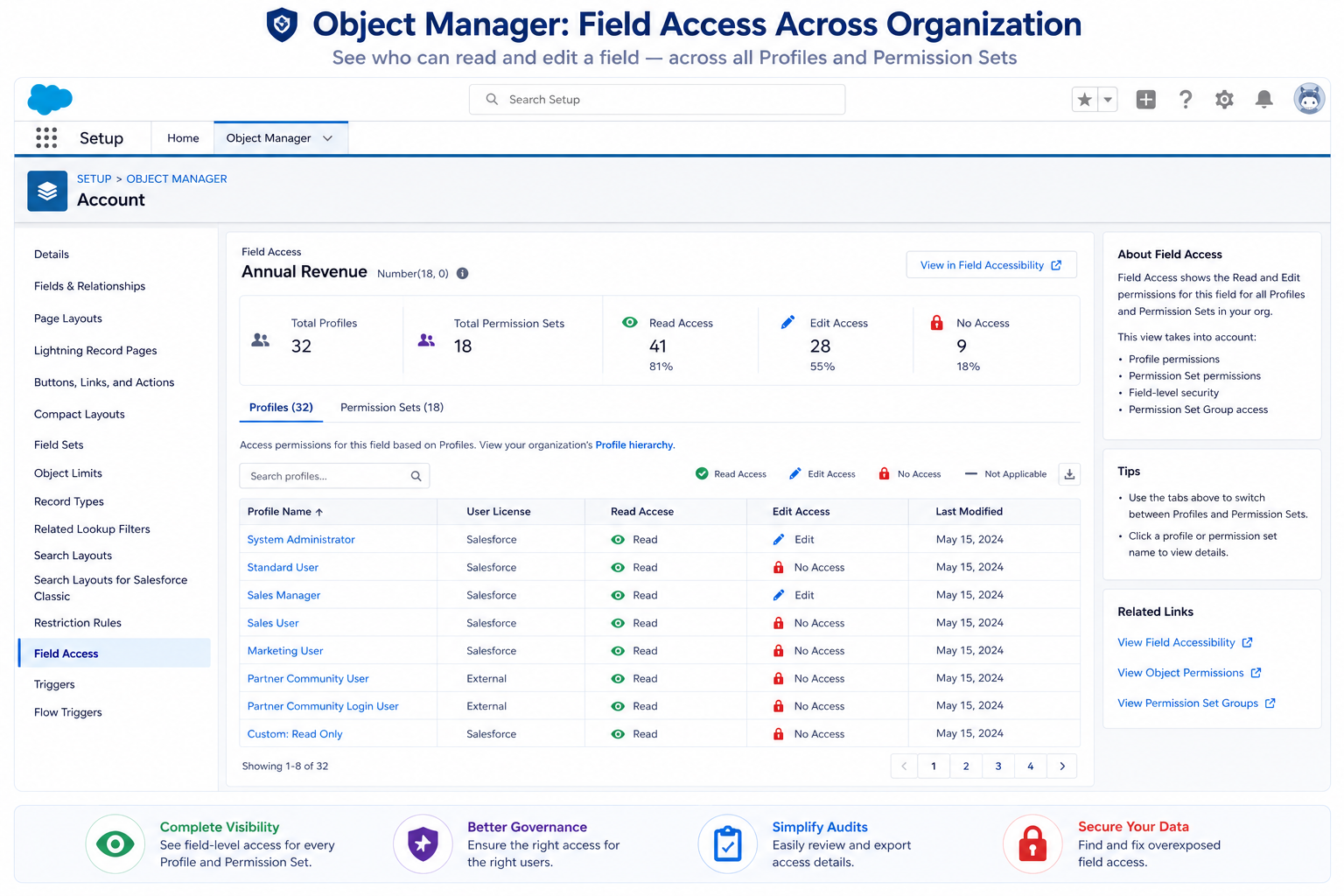
Summer ’26 introduces Field Access View—a unified interface showing all profiles and permission sets with their access levels for a field in a single view. It’s a deceptively simple feature with enormous practical impact. What took 30 minutes of clicking now takes 30 seconds of viewing.
This post explores what the Field Access View does, why it matters, and how it changes field access management workflows.
THE FIELD ACCESS MANAGEMENT PROBLEM
Why This Feature Was Needed
The Before Scenario: Manual Field Access Auditing
Task: Check which profiles can edit the “Account Number” field
Old Process:
- Go to Setup → Object Manager → Account
- Click on “Account Number” field
- See basic field information
- Click “Field Access” section
- See Permission Set Group (1) and Profiles (60)
- Must click each profile individually to see access level
- For each profile:
- Click profile name
- Navigate to field access section
- Check read/edit permissions
- Navigate back
- Repeat for next profile
- Manually compile spreadsheet of findings
- If error made, start over
Time Required:
- 15-30 minutes for single field
- Must repeat for each field being audited
- Multiple fields: hours of work
Error Rate:
- Easy to miss profiles
- Easy to miss permission sets
- Manual compilation error-prone
- Results unreliable
Real Scenarios Where This Mattered
Scenario 1: Security Audit
Requirement: “Verify that only Finance profiles can edit ‘Account Budget’ field”
Manual process:
– List all profiles in org (60+)
– Open each profile
– Check field permissions
– Manually verify
– Takes 2-3 hours
– High error risk
– Can’t easily share findings
Scenario 2: Troubleshooting User Access
User reports: “I can’t edit this field”
Investigation:
– Check user’s profile: doesn’t have access
– Check user’s permission sets: doesn’t have access
– Check custom permission sets: check each one individually
– Takes 30 minutes to confirm what should take 5 minutes
Scenario 3: Field Permission Compliance Check
Requirement: “Document field access for compliance”
Process:
– Pull field access matrix
– Create spreadsheet
– Go through each field/profile combination
– Document permissions
– Days of work
– High error potential
The Underlying Challenge
Why It Was So Tedious:
Salesforce architecture stores field access scattered:
- Profile object (field permissions stored within)
- Permission Set object (field permissions stored within)
- Custom Permission Set Groups
- Multiple places to check, no unified view
Result:
No single place to see all access for one field. Had to manually aggregate from multiple sources.
WHAT THE FIELD ACCESS VIEW DOES
Feature Capabilities
What You Can See
In One View:
- Field name
- Field type
- All profiles in org with their access levels
- All permission sets in org with their access levels
- All permission set groups (if applicable)
- Read/Edit access clearly shown
Access Levels Displayed:
- Read access: Yes/No
- Edit access: Yes/No
- No access: Neither read nor edit
How to Access It
Step 1: Navigate to Object Manager
Setup → Object Manager → Select Object
Step 2: Select Field
Click on the specific field you want to audit
(e.g., “Account Number” for Account object)
Step 3: View Field Access
In field details, click “Field Access” tab
Unified view shows all profiles/permission sets
Alternative Access:
From field details page:
Field name shown
Field type shown
Below: “Field Access” section
Shows “Permission Set (1)” “Permission Set Groups (0)” “Profiles (60)”
Click to expand
See all access levels at once
Key Benefits
Benefit 1: Unified View
- All access in one place
- No navigation required
- No clicking between profiles
- Complete picture instantly
Benefit 2: Time Savings
- 30 minutes reduced to seconds
- Audit multiple fields quickly
- Compliance check in minutes not hours
- Admin time freed for other work
Benefit 3: Accuracy
- Less manual work = fewer errors
- Can’t miss profiles (all shown)
- Can’t misread permissions (clearly displayed)
- Reliable data for compliance
Benefit 4: Easy Documentation
- Screenshot captures all access
- No manual compilation needed
- Share findings with stakeholders
- Clear audit trail
USE CASES AND WORKFLOWS
Practical Applications
Use Case 1: Security Audit
Requirement: Verify field access is appropriate
Process:
- Go to field in Object Manager
- Open Field Access view
- Review all profiles and permission sets
- Verify:
- Only intended profiles have access
- Finance fields only accessible to Finance roles
- Sensitive fields restricted appropriately
- Document findings
- Report to compliance
Benefit:
What took hours takes minutes. Documentation easy.
Use Case 2: User Access Troubleshooting
Scenario: User reports “I can’t edit this field”
Investigation Process:
- Get user’s profile name
- Go to field in Object Manager
- Open Field Access view
- Look up user’s profile: Does it have edit access?
- If not, check user’s permission sets:
- Look through all permission sets
- Find any with edit access
- If none, confirm: user legitimately doesn’t have access
- Provide clear answer: profile/permission set that needs to be changed
Benefit:
Clear answer in minutes instead of 30+ minutes. Confidence in diagnosis.
Use Case 3: Permission Set Design
Scenario: Creating new permission set for role
Process:
- Understand which fields that role needs access to
- For each field, open Field Access view
- See which other permission sets grant access
- Copy similar structure for new permission set
- Ensure consistency with other similar roles
Benefit:
Learn from existing patterns. Ensure consistency. Faster design.
Use Case 4: Field Access Compliance Reporting
Requirement: Document field access for compliance
Process:
- For each regulated field:
- Open Object Manager
- Open Field Access view
- Screenshot or document access matrix
- Compile all fields into compliance report
- Submit for audit
Benefit:
Easy to document. Evidence collected easily. Audit-ready.
Use Case 5: Impact Analysis for Field Changes
Scenario: Planning to restrict access to sensitive field
Process:
- Open Field Access view for field
- See which profiles/permission sets currently have access
- Identify affected users
- Plan communication about change
- Plan training if needed
- Implement change
Benefit:
Clear view of impact before making change. Better planning.
Use Case 6: Org Cleanup and Consolidation
Scenario: Consolidating multiple permission sets
Process:
- Compare similar permission sets
- For key fields, check access in each
- Identify which can be consolidated
- Identify overlaps
- Plan consolidation
Benefit:
Easy to compare permission sets. Identify redundancy.
BENEFITS FOR DIFFERENT ROLES
How This Helps Different Personas
System Administrator Benefits
Daily Benefits:
- Field access questions answered instantly
- Troubleshooting faster
- Less time on routine audits
- More time on strategic work
Security/Compliance Officer Benefits
Audit Efficiency:
- Compliance checks faster
- Evidence easy to gather
- Documentation complete
- Audit trail clear
Org Architect Benefits
Design Efficiency:
- Permission set patterns visible
- Access levels clear
- Design consistency easier
- Impact analysis quick
Manager/Stakeholder Benefits
Visibility:
- Can understand field access easily
- No technical jargon needed
- Visual representation clear
- Can verify team has appropriate access
ADMIN EFFICIENCY METRICS
Heading: Quantifying the Time Savings
Time Savings by Task
Task: Audit Single Field Access
Before:
- Research: 2 minutes
- Navigate to field: 1 minute
- Review access for 60 profiles: 25 minutes (25 seconds each)
- Review 20 permission sets: 10 minutes (30 seconds each)
- Compile findings: 5 minutes
- Total: ~43 minutes
After:
- Research: 2 minutes
- Navigate to field: 1 minute
- View Field Access page: 30 seconds (everything visible)
- Compile findings: 1 minute (already organized)
- Total: ~4.5 minutes
Savings: 38 minutes per field (88% reduction)
Annual Time Savings
Scenario: Mid-size org with 50 objects, 100 fields requiring regular audit
Annual audit work:
Before:
– 100 fields × 43 minutes = 4,300 minutes
– = 71.7 hours per year
– = ~2 weeks of full-time work
After:
– 100 fields × 4.5 minutes = 450 minutes
– = 7.5 hours per year
– = ~1 day of work
Savings: 64+ hours per year
= 1.5+ weeks of admin time freed up
BEST PRACTICES FOR FIELD ACCESS MANAGEMENT
Leveraging Field Access View Effectively
Best Practice 1: Regular Field Access Audits
Pattern:
- Quarterly review of field access
- Use Field Access view for efficiency
- Document findings
- Report to stakeholders
Benefit:
Catch unauthorized access early. Stay compliant.
Best Practice 2: Document Field Access at Design Time
When creating field:
- Note which profiles/permission sets need access
- Document in field description or separate doc
- Use Field Access view to verify
- Maintain accuracy
Benefit:
Clear design intent. Easy to validate later.
Best Practice 3: Template-Based Permission Sets
Pattern:
- Create template permission sets for common roles
- Document field access template in Field Access view
- Use as reference for future similar sets
- Ensures consistency
Benefit:
Consistent access levels. Faster design. Easier to audit.
Best Practice 4: Change Management
Before changing field access:
- Use Field Access view to see current access
- Identify all affected users
- Document impact
- Plan communication
- Implement change
- Verify in Field Access view
Benefit:
No surprises. Good change management.
Best Practice 5: Compliance Documentation
For compliance audits:
- Screenshot Field Access view for sensitive fields
- Maintains audit trail
- Evidence of controls
- Easy to prove compliance
Benefit:
Audit-ready. Clear evidence.
FINAL THOUGHTS
Field Access View in Summer ’26 is a perfect example of Salesforce listening to admin pain points and delivering practical solutions. It’s not flashy. It won’t make headlines. But it will save admins hours of tedious work every year.
The impact compounds over time. Every field access question was answered faster. Every audit completed quicker. Every compliance check is easier. Across a year, those minutes add up to hours, which add up to days of free admin time.
More importantly, it improves accuracy. Manual checking is error-prone. Viewing all access in one place eliminates errors. Field access audits become reliable. Compliance evidence becomes clear.
For any Salesforce organization with field-level security requirements, this is a valuable upgrade. For admins managing complex permission structures, this is a significant productivity improvement.
The larger pattern: Salesforce continues making admin tasks more efficient. Security improvements, notification enhancements, setup streamlining—all reducing the time admins spend on routine work so they can focus on strategy.
Field Access View is the latest example of this pattern. Simple. Effective. High impact.