


INTRODUCTION
List view sorting has worked the same way for years: when sorting ascending, blank values appeared first. It’s a quirk of database sorting behavior—nulls traditionally come first. But it’s a quirk that creates friction for users: they sort by amount expecting to see actual values first, then blanks. Instead, blanks appear first, obscuring the real data.
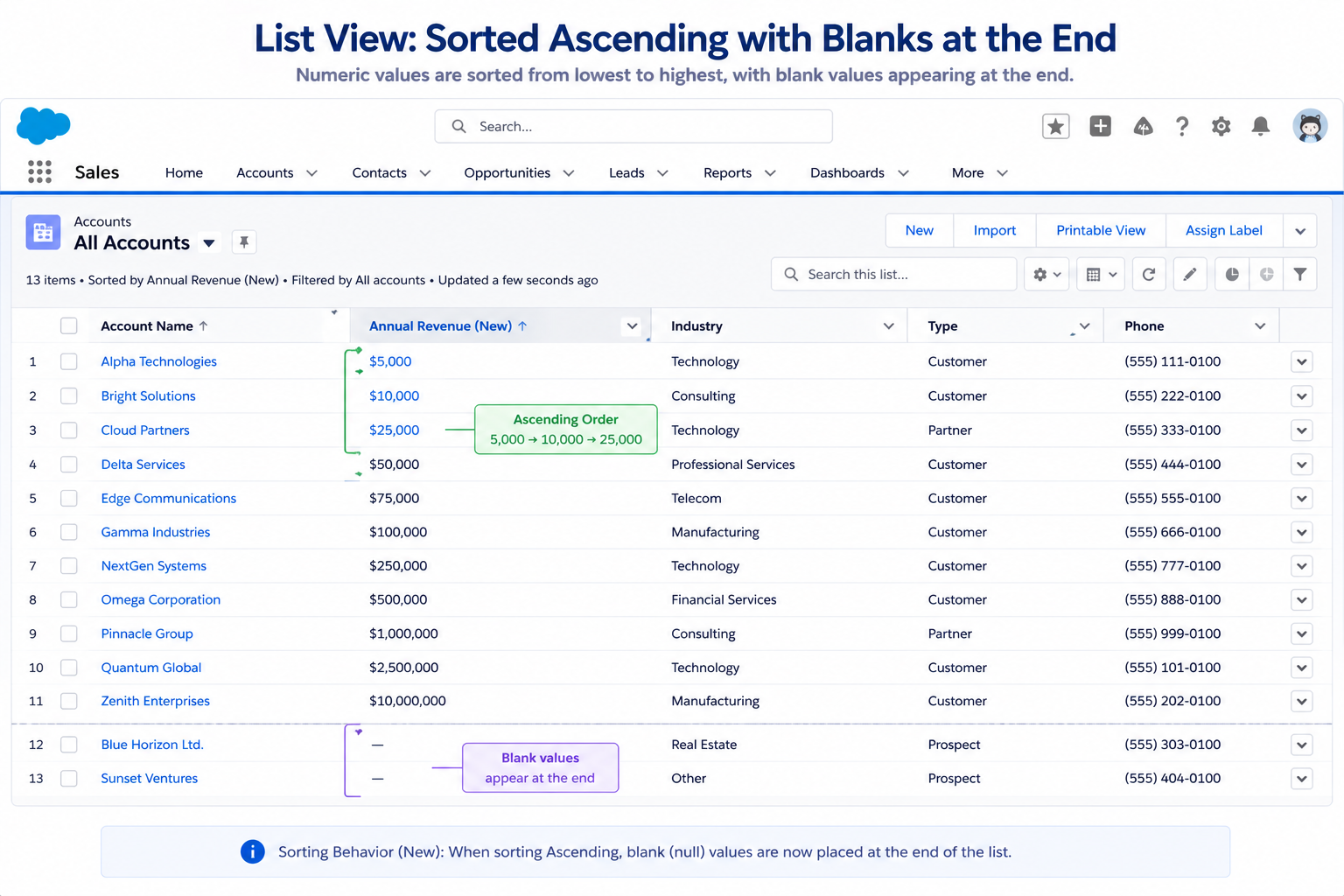
Spring ’26 fixes this with a seemingly small change: blank and null values now sort to the end, treated as the highest value. It’s a quality-of-life improvement that doesn’t sound dramatic until you realize how much friction it removes from daily work.
This post explores why this change matters, how it improves workflows, and what it means for data presentation across Salesforce.
THE BLANK VALUE SORTING PROBLEM
Why Default Behavior Was Problematic
The Before Behavior: Nulls First
How It Worked:
When sorting list views ascending, blank/null values appeared first.
Example – Cases by Amount (Ascending):
Before Spring ’26:
(blank) ← Appears first!
(blank) ← Multiple blanks at top
$5,000
$10,000
$25,000
$50,000
User sees blanks first, actual data below
Why This Happened:
Database sorting treats NULL as lowest value, so it comes first in ascending order.
Real-World Impact
Scenario 1: Sales Pipeline by Amount
Manager wants to see opportunities sorted by amount
(ascending – smallest to largest)
Before:
(blank) – 5 opportunities (incomplete amounts)
(blank) – 3 more
(blank) – 2 more
$10,000 – First actual value
$50,000
$100,000
$250,000
User sees 10 blank records before seeing real data
Frustrating: What the manager wanted to see (actual amounts) is below the fold
Scenario 2: Cases by Close Date
Support manager sorting cases by date
Wants to see oldest cases first
Before:
(blank) – Cases without close date
(blank) – More without date
11/28/2025
12/1/2025
12/15/2025
Blank cases at top, obscuring actual timeline
Manager must scroll to see real data
Scenario 3: Accounts by Revenue
Sales rep sorting accounts by revenue
Wants to see biggest customers first
Before (Descending):
$10,000,000
$5,000,000
$1,000,000
(blank) – Accounts without revenue
(blank) – More without revenue
Mixed results: Real data at top, then blanks
Inconsistent because blanks still treated specially
Why This Was a Problem
Problem 1: Obscures Real Data
- Users want to see actual values
- Blanks appear first, pushing real data down
- Forces scrolling to see meaningful information
Problem 2: Unexpected Behavior
- Users expect blanks at the end
- Database default behavior (blanks first) surprises
- Counterintuitive sorting
Problem 3: Requires Workarounds
- Some users create filters to hide blanks
- Some accept the limitation
- Some question data completeness
THE SPRING ’26 FIX
The New Sorting Behavior
What Changed
New Behavior:
Blank and null values are now treated as the highest value, appearing at the end when sorting.
Example – Same Cases by Amount (Ascending):
After Spring ’26:
$5,000 ← Actual values first!
$10,000
$25,000
$50,000
(blank) ← Blanks at the end
User sees real data immediately
Blanks grouped at the end
Clear separation between data and blanks
Sorting Rules After Fix
Ascending Sort (A → Z, Low → High):
- Actual values (low to high)
- Blank/null values (at the end)
Example (Numbers):
$5,000 → $10,000 → $25,000 → (blank) → (blank)
Example (Text):
Acme → Baker → Zenith → (blank) → (blank)
Example (Dates):
Jan 1 → Feb 1 → Mar 1 → (blank)
Descending Sort (Z → A, High → Low):
- Actual values (high to low)
- Blank/null values (at the end)
Example (Numbers):
$25,000 → $10,000 → $5,000 → (blank) → (blank)
Example (Text):
Zenith → Baker → Acme → (blank) → (blank)
Example (Dates):
Mar 1 → Feb 1 → Jan 1 → (blank)
Key Point:
Blanks appear at the end in BOTH ascending and descending sorts.
IMPLICATIONS FOR DATA QUALITY
What Blank Values Tell You
Blanks Now Visible as a Group
Old Behavior:
- Blanks scattered throughout (appeared first)
- Hard to see how many blanks exist
- Easy to miss data completeness issues
New Behavior:
- Blanks grouped at end
- Easy to see missing data concentration
- Highlights data quality problems
Using This for Data Quality Monitoring
Pattern Recognition:
Looking at sorted list:
If many blanks at bottom: Data incomplete
If few blanks at bottom: Data mostly complete
If no blanks at bottom: Data is complete
Example – Accounts by Phone:
100 accounts total
95 with phone numbers
5 blank at bottom
→ 95% data completeness
Example – Cases by Amount:
50 cases total
15 with amounts
35 blank at bottom
→ 30% data completeness
→ Action: Collect missing amounts
Data Quality Initiative:
Using new sorting to identify gaps:
- Sort each key field by value
- Count blanks at end
- Identify fields with low completeness
- Prioritize data entry
- Track improvement over time
Spring ’26 makes this visible and intuitive
BEST PRACTICES
Using the New Sorting Effectively
Best Practice 1: Leverage Blanks Visibility
Use New Sorting To:
- Identify incomplete records
- Assess data quality
- Track data completeness
- Prioritize data entry
Example:
Manager notices 20 opportunities without amounts
Uses new sort to group them at bottom
Assigns team to collect amounts
Tracks completion progress
Best Practice 2: Create Data Quality Views
Create List Views For:
“Complete Opportunities” – Filter out blanks
“Incomplete Opportunities” – Only blanks
“All Opportunities Sorted by Amount” – Uses new sort
Users can choose appropriate view
Best Practice 3: Update Documentation
Update User Documentation:
- Explain new sorting behavior
- Show how to use for data quality
- Explain blank grouping at end
- Highlight improvement
Best Practice 4: Communicate Change
Let Users Know:
- What changed (sorting behavior)
- Why it’s better (data readability)
- How to use it (sort by key fields)
- Where blanks appear (at the end)
User Education:
Training message:
“When you sort a list, blank values now appear at the end.
This makes it easier to see your actual data first.
SECTION 5: TECHNICAL DETAILS
Heading: Under the Hood**
How It Works
Database Level:
- Database treats NULL as special value
- Default: NULL sorts first
- Spring ’26: Application treats NULL as highest value
- Result: Blanks appear at end in UI
Sorting Algorithm:
Ascending (Low → High):
- Extract non-null values
- Sort non-null values ascending
- Append null values at end
Descending (High → Low):
- Extract non-null values
- Sort non-null values descending
- Append null values at end
Applies To
List Views:
- All object list views
- All field types (text, number, date, etc.)
- All sorting directions (ascending, descending)
- All object types
Similar Behavior:
- Reports may have different sort behavior (depends on report engine)
- API results may differ (depends on API sort)
- Database queries may need explicit NULL handling
FINAL THOUGHTS
Spring ’26’s sorting improvement is a perfect example of the difference between “functionally correct” and “user-friendly.” Technically, NULL-first sorting is valid database behavior. But user-friendly? Not really. Most users expect blanks at the end.
The fix is simple conceptually—treat blanks as highest value—but the impact is significant. Data readability improves. User frustration decreases. Workflows become more intuitive. Workarounds become unnecessary.
It’s a quality-of-life improvement that accumulates: every time someone sorts a list, they now see what they expect instead of blanks obscuring the data. Over thousands of list view sorts across the org, the cumulative improvement is substantial.
More importantly, it highlights data quality issues naturally. Blanks grouped at the end make incomplete data obvious. Without intentional filtering or analysis, users see how complete their data is. This drives data quality improvement.
For Salesforce users, this change requires no action—it’s automatic. But it’s worth understanding how it changes sorting behavior and taking advantage of it for data quality monitoring.
It’s small. It’s subtle. But it’s genuinely valuable.