

INTRODUCTION
Before Summer ’26, redirecting users to a record from a Salesforce Flow required workarounds: custom Lightning Web Components, Apex actions, or complex URL manipulation. It was doable but added complexity to what should be a simple operation.
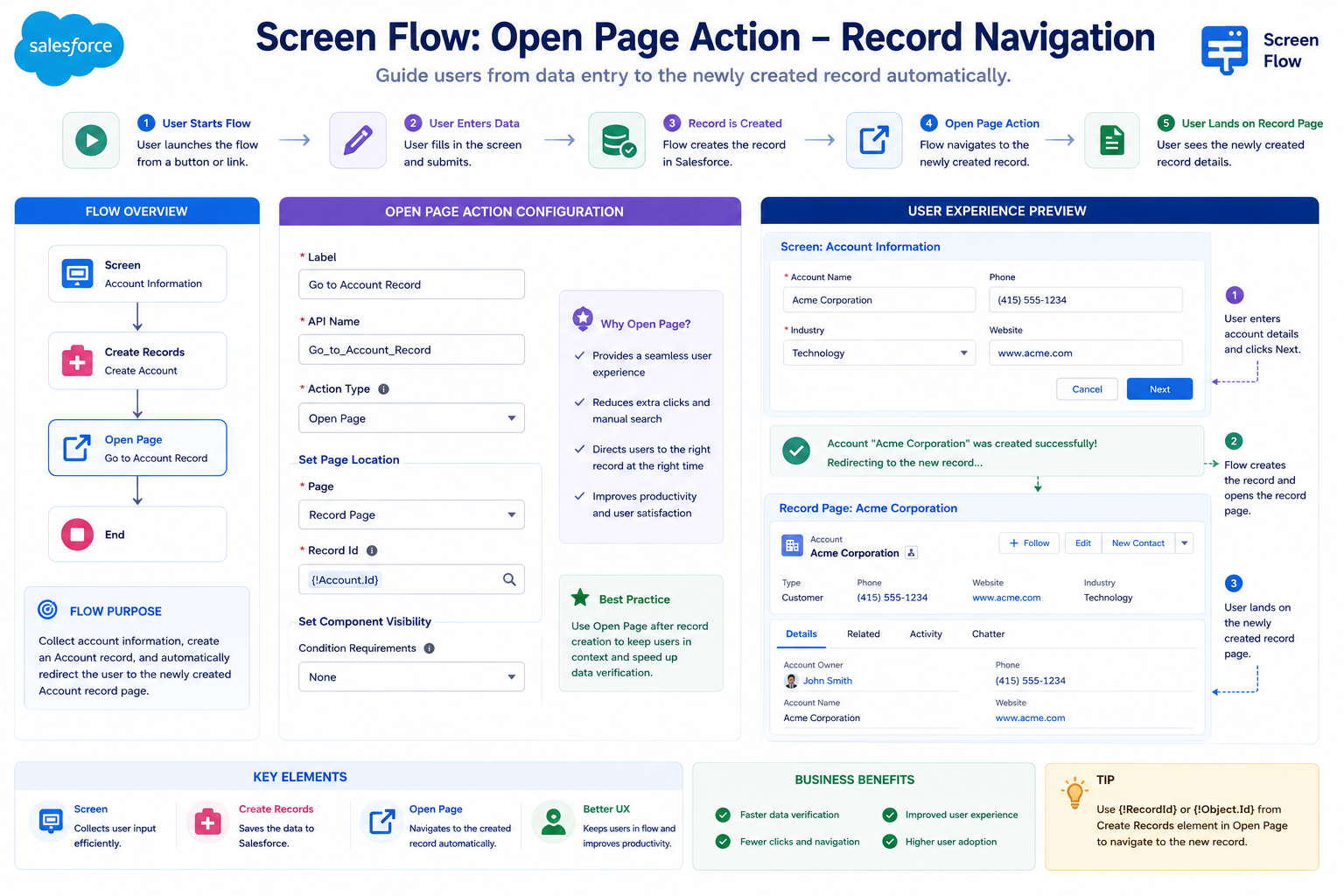
Summer ’26 changes this with the Open Page action—a native Flow element that redirects users to any Salesforce record page with a single configuration. No code needed. No custom components. Just a declarative action that does what it should: take users where they need to go.
This post covers what the Open Page action is, why it matters, how to use it, best practices, and the patterns it enables. For flow builders and admins, this is a game-changer for user experience and flow complexity.
THE PROBLEM BEFORE SUMMER ’26
Why Record Navigation Was Hard
The Scenario: Create Record and Show It
Common Business Requirement:
User Creates Record Flow:
- User fills in form (Screen Flow)
- Records created (Create Records action)
- User should see newly created record
- Problem: How to navigate there?
Expected behavior:
– User sees form
– User clicks Create
– Record created
– User automatically taken to record page
– Simple, seamless, good UX
Reality (before Summer ’26):
– “Navigate to URL” action exists
– But it requires building the URL manually
– URL format: /lightning/r/Opportunity/[ID]/view
– Must know object name and ID
– Must construct URL in formula
– Error-prone
– Clunky
Example: Create Opportunity Flow
Previous Workarounds
Workaround 1: Navigate to URL (Fragile)
Flow configuration:
- Create Opportunity record
└─ Output: Opportunity ID
- Navigate to URL action
URL formula:
‘/lightning/r/Opportunity/’ +
opportunityId + ‘/view’
Where to open: New Browser Tab
- End
Problems:
- Must construct URL manually
- Must know object API name
- If ID is null (record creation failed), URL breaks
- No error handling built-in
- Can’t control View vs Edit mode easily
- Dependent on Lightning Experience (doesn’t work in Salesforce Classic)
Workaround 2: Custom LWC Component (Complex)
Create custom LWC:
import { LightningElement, api } from ‘lwc’;
import { NavigationMixin } from ‘lightning/navigation’;
export default class NavigateToRecord
extends NavigationMixin(LightningElement) {
@api recordId;
@api objectName;
connectedCallback() {
this[NavigationMixin.Navigate]({
type: ‘standard__recordPage’,
attributes: {
recordId: this.recordId,
actionName: ‘view’
}
});
}
}
Flow configuration:
- Create record
- Add custom LWC to screen
- Pass recordId, objectName
- Click button to trigger navigation
Problems:
- Requires custom component development
- Requires testing and maintenance
- Overkill for simple navigation
- Adds flow complexity
- Need to maintain component library
Workaround 3: Apex Action (Over-engineered)
Create Apex action:
@InvocableMethod
public static void navigateToRecord(
List<NavigationRequest> requests) {
for(NavigationRequest req : requests) {
// Return navigation instruction
}
}
Problems:
- Requires Apex code
- More testing needed
- Maintenance burden
- Overkill for navigation
- Should be declarative, not coded
WHAT IS THE OPEN PAGE ACTION?
Understanding the Feature
Definition and Purpose
Open Page Action:
A native Flow element that redirects users to
any Salesforce page (record pages, list views,
custom pages, external URLs, etc.)
Purpose:
– Navigate to newly created records
– Navigate to related records
– Navigate based on conditions
– Provide seamless user experience
– Reduce need for custom components
When to use:
- After creating a record
- As a conditional redirect
- To navigate to related records
- To open list views or dashboards
- To link to external resources
Key Capabilities
Page Type Options:
Open Page action supports:
- Salesforce Record Page
– Navigate to any record (Account, Opportunity, Contact, etc.)
– Specify Record ID
– Specify View or Edit mode
- Salesforce List View
– Navigate to predefined list view
– Show filtered records
- Salesforce Dashboard
– Open dashboard
- Salesforce Report
– Open report
- Custom LWC Page
– Navigate to custom page
- External URL
– Navigate to external website
– Works for any URL
- Web Page
– Open web page in new tab
Configuration Options:
For Salesforce Record Page:
– Record ID (required)
└─ From previous step, formula, or variable
– Object Name (required)
└─ Account, Opportunity, Contact, etc.
– View Mode
├─ View (read-only)
└─ Edit (editable)
For all page types:
– Where to Open Page
├─ Current Window (replace flow)
├─ New Browser Tab (separate window)
└─ Sidebar (if in Lightning Experience)
– Page Label (optional)
└─ Display label for the action
VIEW MODE AND EXPERIENCE OPTIONS
Controlling How Records Are Displayed
View Mode Options
View Mode: View (Read-Only)
Configuration:
– View Mode: View
– User can: Read data
– User cannot: Edit data
– Shows: Record details page (locked)
When to use:
- After creating record (show what was created)
- For confirmation (user sees result)
- For display-only flows
- When editing not needed
View Mode: Edit (Editable)
Configuration:
– View Mode: Edit
– User can: Edit record
– User can: Save changes
– Shows: Record edit page
When to use:
- User needs to edit just-created record
- Incomplete data flow
- Further refinement needed
- User provided basic info, now adds more
Where to Open Page Options
Option 1: Current Window
Behavior:
– Replaces current page with record page
– User stays in same window
– Flow closes
When to use:
- Flow is modal overlay
- Completing task (user done with flow)
- Single action
- Don’t need flow context
Option 2: New Browser Tab
Behavior:
– Opens record in new tab
– Flow remains open in original tab
– User can return to flow if needed
When to use:
- User might need to return to flow
- Informational (showing result)
- Want to keep flow context
- Multi-step flow with navigation
Option 3: Sidebar (Lightning Experience Only)
Behavior:
– Opens record in sidebar panel
– Flow remains visible
– Record accessible without leaving flow
When to use:
- Referenced records
- Quick lookup
- View while working on flow
- Lightning Experience only
BEST PRACTICES
Using Open Page Action Effectively
Best Practice 1: Always Validate Before Opening
Good:
Flow Logic:
- Create record
- Check if creation succeeded (ID not null)
- If yes → Open Page
- If no → Show error message
Decision:
– IF recordId != null
– THEN Open Page
– ELSE Show Error
Bad:
Flow Logic:
- Try to create record
- Immediately open page
- No validation
Problem:
– If creation failed, still opens page
– User sees error or blank page
– Poor experience
Best Practice 2: Provide User Feedback Before Navigation
Good:
Flow Logic:
- Create record
- Display success message: “Opportunity created!”
- Wait 2 seconds (helps user register what happened)
- Open Page
- Show newly created record
Bad:
Flow Logic:
- Create record
- Immediately navigate
- No feedback
Problem:
– User doesn’t know what happened
– Unclear if creation succeeded
– Confusing experience
Best Practice 3: Use Consistent Object Names
Good:
Object Name: Opportunity
– Correct API name
– Matches standard object
– Always works
Configuration:
– Object Name: Opportunity (not “Oppty” or “Opp”)
Bad:
Object Name: Oppty
– Not the actual API name
– May fail silently
– Inconsistent
Best Practice 4: Handle Navigation Errors
Implement:
Error Handling Pattern:
Whenever using Open Page:
– Ensure Record ID populated
– Ensure Object Name valid
– Ensure page exists
– Have fallback option (error screen)
– Log errors for troubleshooting
Example:
– If navigation fails, show message
– “Could not open record. Please refresh page.”
– Provide manual link to record
Best Practice 5: Test Across Browsers and Devices
Test:
Browsers:
– Chrome
– Firefox
– Safari
– Edge
Devices:
– Desktop
– Tablet
– Mobile
Verify:
– Record opens correctly
– View/Edit mode works
– New tab/current window both work
– Sidebar (if used) displays properly
FINAL THOUGHTS
The Open Page action represents the right kind of feature addition to Salesforce: it solves a real problem that developers and admins encountered repeatedly, and it does so with elegance and simplicity.
Before Summer ’26, record navigation required workarounds—manual URL construction, custom components, or Apex code. All of these worked but added unnecessary complexity. The Open Page action recognizes that navigation is a fundamental operation and provides native support for it.
This is how Salesforce should evolve: by taking common patterns and making them declarative, integrated, and easy to use. The Open Page action does exactly that.
For flow builders, the impact is immediate: flows become simpler, faster to build, and provide better user experience. The need for custom components drops significantly. Maintenance burden decreases.
For organizations, the impact is increased productivity and faster flow development cycles.
For users, the impact is seamless experiences—they create records and are immediately shown what they created, without awkward redirects or manual page loading.
Summer ’26’s Open Page action is a small feature with big implications for how Salesforce flows work. It’s a reminder that sometimes the best improvements are the ones that remove friction and make the obvious solution actually work.
Use it. Your flows and your users will thank you.